Database Structure (Grade 11 NSC Matric Computer Application Technology): Revision Notes
📚Revision Notes
Database Structure
Introduction to database structure
Database structure is the foundation that makes your database work properly. In Microsoft Access, every database begins with creating tables and adding records and fields to those tables. Understanding how to create these tables correctly is incredibly important if you want your database to be accurate and function as intended.
When working with databases, you'll learn essential skills like creating tables and forms, entering data into tables, adding and deleting records and fields, validating data, and using philtres to sort information. You'll also discover how to work with Design and Table views, and how to format and edit database tables effectively.
Note
Database tables are similar to spreadsheets but offer much more powerful capabilities for organising, linking, and managing information across multiple related datasets.
Creating tables
Tables form the backbone of any database system. Think of a table as a structured way to organise related information, much like a spreadsheet but with more powerful capabilities. In Microsoft Access, there are two main approaches to adding tables to your database:
Note
Two Main Approaches to Table Creation:
- Creating a table in a new database - This happens automatically when you start fresh
- Adding a table to an existing database - This requires using specific commands
Creating a new database
When you create a completely new database in Access, the software automatically creates your first table since a database cannot exist without at least one table. Here's how the process works:
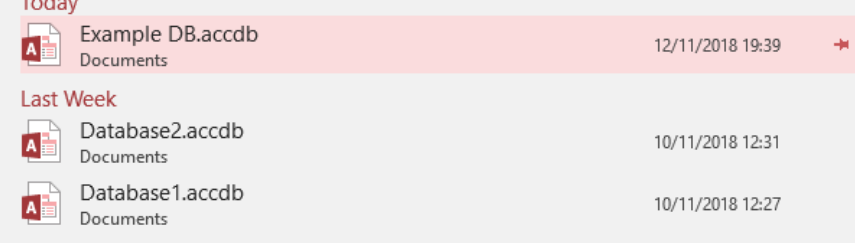
The system will guide you through selecting a blank database template, naming your database file, choosing where to save it, and then creating your first table structure.
Adding tables to existing databases
If your database already contains data and you need additional tables, you'll work through the Create tab in Access. This gives you access to various table creation tools and options.
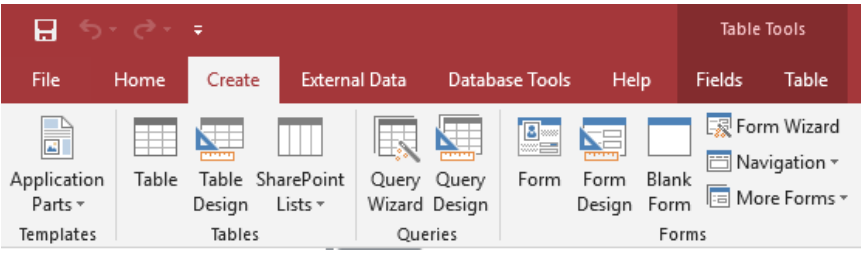
The Create tab provides multiple options including Table Design, which allows you to build your table structure from scratch with complete control over field properties and data types.
Primary keys
A primary key serves as the unique identifier for each record across your entire database. Understanding primary keys is crucial because they ensure that every piece of information in your database can be distinctly identified and referenced.
Important
Primary Key Definition: A primary key is a unique identifier for something across the whole database. It ensures that no two records in your table are identical, which maintains data integrity and allows for efficient searching and linking between different tables.
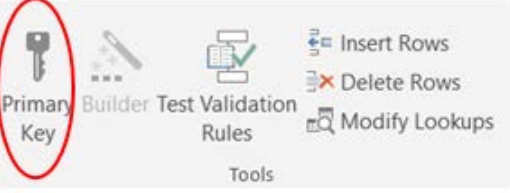
Primary keys can consist of a single field or multiple fields working together. For example, in a student database, you might use just a student ID number as the primary key, or you could combine the student ID, name, surname, and email address to create a more complex primary key system.
Field properties
Field properties control how your data behaves within each column of your table. These properties determine everything from how much information can be stored to how it appears on screen. Understanding field properties is essential for creating professional, reliable databases.
Key field properties explained
Note
Field Size - Maximum size limit on data entered into the column. For text fields, this refers to the number of characters and spaces allowed. Setting appropriate field sizes helps prevent data entry errors and saves storage space.
Note
Format - Enables you to set the precise manner in which Access displays or prints the data stored in your tables. The formatting options available depend on the data type you've selected for that particular field.
Note
Input Mask - Controls how data is entered into a particular field. This feature provides a template that's particularly useful for ensuring consistent data entry, especially with fields like phone numbers, dates, and currency amounts.
Decimal Places applies to number fields and specifies how many digits should appear after the decimal point when the data is displayed.
Default Value is automatically placed in that column every time a new record is added. This saves time during data entry and helps ensure consistency across your database.
Required forces a user to enter some value in specific fields before they can save a record. This prevents incomplete records from being added to your database.
Example table structure
Here's a practical example of how these field properties work together in a real database:
| Field Name | Data Type | Purpose |
|---|---|---|
| LearnerID | Autonumber | Unique identifier (Primary Key) |
| Name | Short Text | Student's first name |
| Surname | Short Text | Student's family name |
| Grade | Short Text | Current grade level |
| Fees Paid | Number | Amount of school fees paid |
Formatting tables
Before adding data to your database, you need to properly format your tables by defining field names, selecting appropriate data types, and adding helpful descriptions. This preparation stage is crucial for creating a well-organised database.
Adding field names
Each column in your table needs a descriptive name that clearly indicates what type of information will be stored there. Good field names are concise, meaningful, and follow consistent naming conventions.
Choosing data types
Access offers various data types to match different kinds of information:
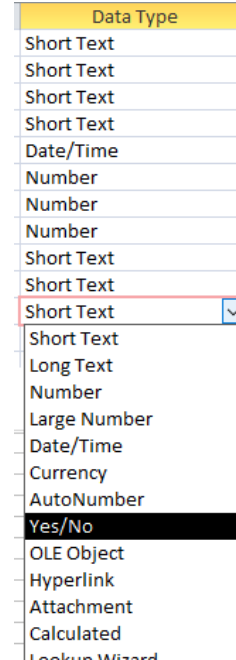
Common data types include:
- Short Text: For names, addresses, and other text information
- Number: For mathematical calculations and numeric data
- Date/Time: For dates and time values
- Yes/No: For true/false or on/off information
- Currency: For monetary amounts
- Autonumber: For automatically generated unique identifiers
Adding descriptions and validation
The Description field allows you to provide additional context about what each field should contain. This helps other users understand the purpose of each field and ensures consistent data entry practices.
You can also set validation rules in the General tab to control what type of data gets accepted. For instance, you might require that dates fall within a specific range or that text entries meet certain criteria.
Adding and deleting records and fields
Once your table structure is established, you can begin managing the actual data. This involves adding new fields when needed, entering information into records, and removing outdated or incorrect data.
Adding new fields
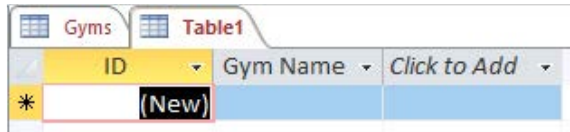
When you need to expand your table structure, you can add new fields using the "Click to Add" feature. This allows you to select the appropriate data type for your new field and immediately begin using it.
Managing records
Adding data to your tables involves filling in information row by row. Each row represents a complete record, and each column contains a specific piece of information about that record.
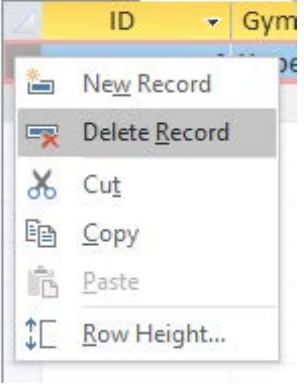
When you need to remove information, you can delete entire records by selecting the row and using the delete function. Access will warn you before permanently removing data to prevent accidental loss.
Working with table data
Example
Worked Example: Conservation Database Structure
Here's how data might be organised in a conservation status database:
| CODE | NAME | ENTRY DATE | TYPE |
|---|---|---|---|
| E | Endangered | 12/03/2019 | Bird |
| SC | Specific Concern | 05/02/2019 | Bird |
| SR | Significantly Rare | 10/02/2019 | Plant |
| T | Threatened | 18/03/2019 | Plant |
Each row represents a different conservation category with its unique code, descriptive name, date of entry, and the type of species it applies to.
Creating forms
Forms provide a user-friendly way to interact with your database information. Instead of working directly with table rows and columns, forms present data in a more accessible format that's easier for users to understand and navigate.
Using the form wizard
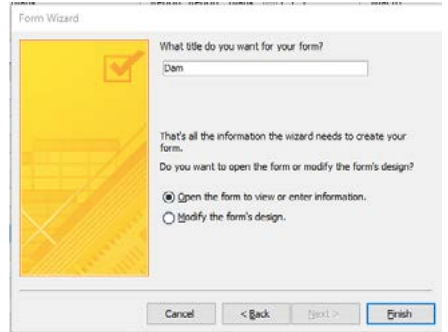
The Form Wizard guides you through creating forms step by step. This automated approach is perfect when you want to quickly create a functional form based on existing table data.
Note
Form Wizard Benefits:
The wizard streamlines form creation by allowing you to:
- Select which table contains the data for your form
- Choose which fields to include on the form
- Pick a layout style (columnar, tabular, datasheet, or justified)
- Give your form a name and decide whether to open it immediately
Creating blank forms
For more control over form design, you can create blank forms and manually add the elements you need. This approach takes longer but gives you complete creative freedom over the form's appearance and functionality.
The blank form method opens the Design view where you can drag and drop fields from the Field List pane directly onto your form. This allows for custom layouts and specialised formatting that might not be possible with the Form Wizard.

Data validation and sorting
Data validation helps maintain the quality and consistency of information in your database. By establishing rules about what data can be entered, you prevent errors and ensure that your database remains reliable and useful.
Important
Why Data Validation Matters: Validation rules protect your database from incorrect or inconsistent information. Without proper validation, databases quickly become unreliable and difficult to use effectively.
Understanding validation rules
Validation rules work in several ways to protect your data:
- Data types automatically restrict what information can be entered. For example, a Date/Time field will only accept valid dates and times, while a Number field rejects text input.
- Field properties can set additional restrictions. If you limit a text field to 50 characters using the Field Size property, Access won't allow longer entries.
- Custom validation rules let you create specific requirements for data entry, such as requiring dates to fall within a particular range or numbers to meet certain criteria.
Sorting and filtering data
To find specific information quickly in your database, you can use sorting and filtering tools similar to those in spreadsheet applications. Click the dropdown arrow next to any field name to access sorting options - you can arrange data alphabetically, numerically, from smallest to largest, or use custom criteria.
Filtering allows you to display only records that meet specific conditions. For example, you might philtre a student database to show only students in Grade 10, or philtre a product database to display items below a certain price point.
Summary
Key Points to Remember:
-
Tables are the foundation - Every database starts with well-designed tables that have clear field names, appropriate data types, and proper primary keys.
-
Field properties control behaviour - Use field size, format, input masks, default values, and required settings to ensure data quality and consistency.
-
Primary keys ensure uniqueness - Every table should have a primary key to uniquely identify each record and maintain data integrity.
-
Forms improve usability - Create forms using the Form Wizard or blank form method to make data entry and viewing more user-friendly.
-
Validation prevents errors - Implement validation rules through data types, field properties, and custom rules to maintain high-quality data in your database.