Formatting, Troubleshooting, and Other Useful Information (Grade 11 NSC Matric Computer Application Technology): Revision Notes
📚Revision Notes
Formatting, Troubleshooting, and Other Useful Information
Database formatting techniques
When working with databases in Microsoft Access, you can customise how your data appears by using special formatting techniques. These help make your database more professional and easier to read.
Using Design View for formatting
Design View is your gateway to applying custom formatting to database fields. Think of it as the behind-the-scenes control panel where you can adjust how information is displayed to users.
To access formatting options for a field, you need to right-click on the field in the Navigation Pane and select Design View from the context menu.
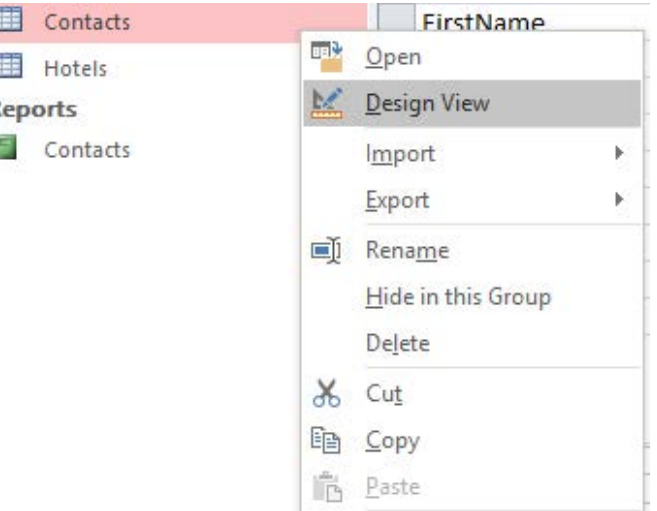
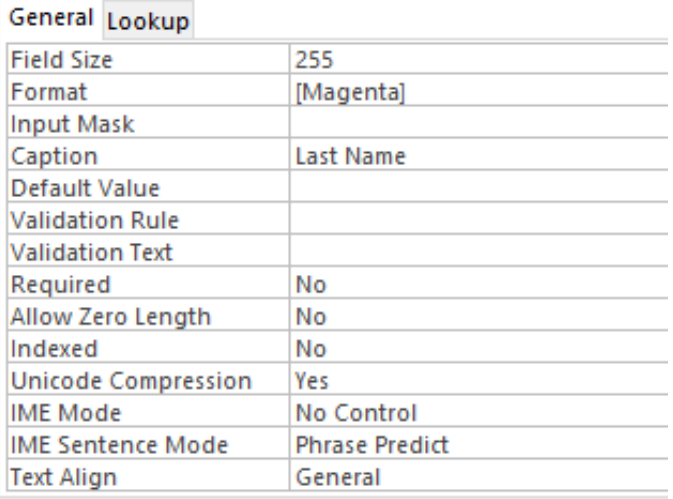
Once in Design View, you can modify the Format property of any field. This property uses special characters called placeholders to control how data appears.
Understanding placeholders and formatting characters
Note
Understanding Placeholders
Placeholders are special symbols that tell Access how to display your data without changing the actual stored values. Think of them as formatting masks that control the appearance of your information.
Placeholders are special symbols that tell Access how to display your data:
- Hash symbol (#) and zero (0) act as placeholders for numbers
- Separators like full stops (.) and commas (,) help organise the display
- Literal characters can be added to provide context
- Colours can be applied to make certain data stand out
The Format property allows you to create custom display rules that make your data more readable without changing the actual stored values.
Saving your formatting work
Important
Always remember to save your changes by pressing Ctrl+S after modifying field properties. This ensures your formatting rules are preserved for future use.
Database integration with other applications
Modern databases don't work in isolation. Access can connect with many other Microsoft applications and services to create powerful, interconnected systems.
Applications you can integrate with
Access works seamlessly with several other programmes:
- Microsoft Word - for creating mail merges and document generation
- Windows SharePoint Services - for web-based collaboration
- Microsoft Outlook - for email management and contact synchronisation
- Microsoft SQL Server - for enterprise-level database management
- Azure SQL Server Database - for cloud-based data storage
Import versus Link - understanding the difference
Important
Critical Distinction: Import vs Link
Understanding the difference between importing and linking is crucial for choosing the right integration method for your needs.
Importing data creates a copy of the information in your Access database. This means:
- Changes to the original source won't affect your Access database
- You have complete control over the copied data
- Updates must be done manually if you want fresh information
Linking data creates a live, two-way connection between Access and the external source. This means:
- Changes made in Access automatically update the original source
- Changes in the original source appear in Access
- You're always working with the most current information
Each integration method has its own specific procedures, so it's important to choose the right approach for your needs.
Troubleshooting database problems
Databases can be complex systems, and sometimes things go wrong. When you encounter problems, there's a systematic approach you can follow to identify and fix issues.
Important
Systematic Troubleshooting Approach
When your database isn't working properly, follow these solutions in order. Working systematically prevents you from making problems worse and helps you identify the root cause more quickly.
Common troubleshooting steps
Check your data and settings:
- Verify that you've selected the correct data type for each field
- Double-check that your queries are written correctly
- Ensure all your data is complete and properly formatted
Basic system fixes:
- Restart Access and save your work
- Create a backup copy of your data, then copy everything to a fresh database
- Shut down and restart your computer
Advanced solutions:
- Update Access to the latest version with all patches and fixes installed
- In severe cases, you might need to uninstall and reinstall Access (but make sure you have data backups first!)
Getting additional help
Note
Additional Support Resources
If you're still stuck after trying the systematic troubleshooting steps, Access provides several support options to help you resolve more complex issues.
If you're still stuck after trying these steps, Access provides several support options:
- Press F1 to open the built-in Help system
- Use the "Tell me what you want to do" search feature
- Visit Microsoft's support website for specific error codes and solutions
Remember, the key to successful troubleshooting is being systematic and patient. Work through the simple solutions first before attempting more complex fixes.
Real-world problem solving with databases
Understanding how to use Access is important, but knowing why you need databases is equally crucial. Databases solve real problems that people and organisations face every day.
Business applications
Note
Business Database Applications
Databases transform how businesses manage information, turning scattered data into actionable insights that drive better decision-making and improved customer service.
Databases help businesses in numerous ways:
- Customer relationship management: Track customer information, purchase history, and preferences to improve service and identify sales opportunities
- Sales analysis: Link customer data with product information to understand which items sell best and when
- Performance tracking: Monitor how well different products, services, or staff members are performing over time
Educational applications
Schools and educational institutions use databases for:
- Student record management: Keep track of enrolment numbers, subjects studied, and academic performance
- Resource allocation: Understand which courses are popular and plan accordingly
- Progress monitoring: Track individual student achievements and identify areas where additional support might be needed
Inventory and catalogue management
Note
Inventory Management Benefits
Database-driven inventory systems help organisations of all sizes maintain optimal stock levels, reduce waste, and understand usage patterns that inform future purchasing decisions.
Organisations of all sizes benefit from database-driven inventory systems:
- Stock control: Know what products you have, when you need to reorder, and how often items are purchased
- Catalogue organisation: Create searchable databases of products, books, or other items
- Usage patterns: Understand trends in how resources are used over time
These real-world applications demonstrate why learning database skills is so valuable - they help solve practical problems that affect businesses, schools, and communities.
Designing databases for specific purposes
Creating an effective database requires careful planning. You can't just start adding tables and hope for the best - you need to think about what you want to achieve and how your database will be used.
Important
Database Planning is Critical
Good planning at the beginning saves enormous amounts of time and frustration later on. A well-designed database structure is the foundation of all successful database projects.
Planning your database structure
Before you start building, consider these important factors:
- What information do you need to store? List all the different types of data you'll be working with
- How will the information be connected? Think about the relationships between different pieces of data
- Who will use the database? Consider what different users need to see and do
- How will the database grow? Plan for future expansion and additional data
Choosing appropriate field types
Different types of information require different field types:
- Short Text fields for names, addresses, and brief descriptions (up to 255 characters)
- Long Text/Memo fields for longer descriptions, notes, or detailed information
- Date/Time fields for tracking when events occur
- Yes/No fields for simple true/false or on/off information
- Number fields for calculations and mathematical operations
Example: Movie collection database
Example
Worked Example: Designing a Movie Collection Database
Consider how someone might design a database for tracking a movie collection:
Step 1: Identify information to track
- Directors, titles, studios, release dates, special editions
Step 2: Organise the data structure
- Separate tables for movies, directors, and studios
Step 3: Define relationships
- Linking directors to their films, studios to their productions
Step 4: Set up primary keys
- Unique identifiers to prevent duplication and enable proper linking
By starting with an existing system (like a spreadsheet) and identifying its limitations, you can design a database that solves specific problems and grows with your needs.
Summary
Summary
Key Points to Remember:
- Design View is your control panel for customising how database fields appear to users
- Import creates copies of data while linking creates live connections - choose the right method for your needs
- Follow a systematic approach when troubleshooting: check data types, verify queries, restart systems, and create backups
- Databases solve real problems in business, education, and personal organisation by managing information efficiently
- Plan your database structure carefully before building - consider what data you need, how it connects, and how it will be used