Advanced Formulas and Functions (Grade 11 NSC Matric Computer Application Technology): Revision Notes
📚Revision Notes
Advanced Formulas and Functions
Understanding formulas and functions
Excel is designed to be primarily a spreadsheet programme, making it particularly powerful when it comes to calculating numbers and solving complex equations. Before you can master advanced calculations, you need to understand the important difference between formulas and functions.
A formula is an expression that uses the values in a cell or range of cells to calculate a new value. Think of it as an instruction you give to Excel about what you want it to do. All formulas begin with an equal sign (=) to let Excel know that it must perform a calculation on the data that follows. For example, a basic formula might be =A1+A2+A3+A4, which tells Excel to add up all the values in cells A1 to A4 and return the result.
A function is a special type of formula that is built into Excel. Functions perform specific calculations in a particular order based on the values in cells and the function's name. These values are called arguments or parameters. For example, the function =SUM(A1:A4) does exactly what the formula example above does, but without you needing to type all the plus signs. Instead, you simply tell Excel to use the SUM function and specify the range A1 to A4.
Important
Key Distinction: While formulas are custom expressions you create, functions are pre-built tools that Excel provides. Functions are essentially specialised formulas designed to perform common calculations efficiently.
Accessing Excel's function library
Excel contains over 400 built-in functions, but don't worry - you don't need to memorise every single one! You can easily access these functions through the Function Library located on the Formulas tab in the Excel ribbon.
Note
The Function Library organises functions into categories like Mathematical, Statistical, Logical, and Text functions, making it easier to find the right tool for your specific needs.
Formula Intellisense - your helpful assistant
Excel also has a feature called Formula Intellisense, which acts like a helpful assistant when you're typing functions. This feature automatically suggests functions based on what you're typing and provides helpful information about each function's syntax and arguments.
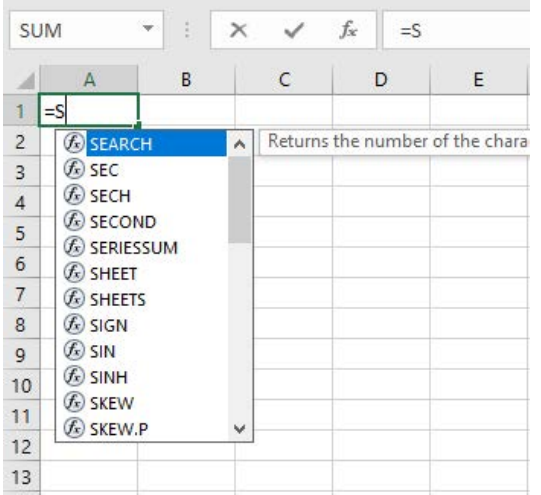
When you start typing a function, Excel displays a dropdown menu showing possible functions that match what you've typed. You'll also see a small tooltip that shows the beginning of each function's description. This makes it much easier to find the right function for your needs.
Note
Formula Intellisense is particularly helpful for beginners as it reduces syntax errors and helps you discover new functions you might not have known existed.
The ROUND function
The ROUND function is one of the most useful mathematical functions in Excel. It rounds a number to a specified number of digits, making your data cleaner and easier to read.
The syntax for the ROUND function is: =ROUND(number, num_digits)
- number: The value you want to round
- num_digits: The number of digits to round to (this is called the precision)
Here's where it gets interesting - the precision parameter can be positive, zero, or negative:
- Positive numbers round to decimal places (e.g., 1 = one decimal place)
- Zero rounds to the nearest whole number
- Negative numbers round to tens, hundreds, thousands, etc.
Example
Worked Example: Using the ROUND Function
Let's look at some practical examples:
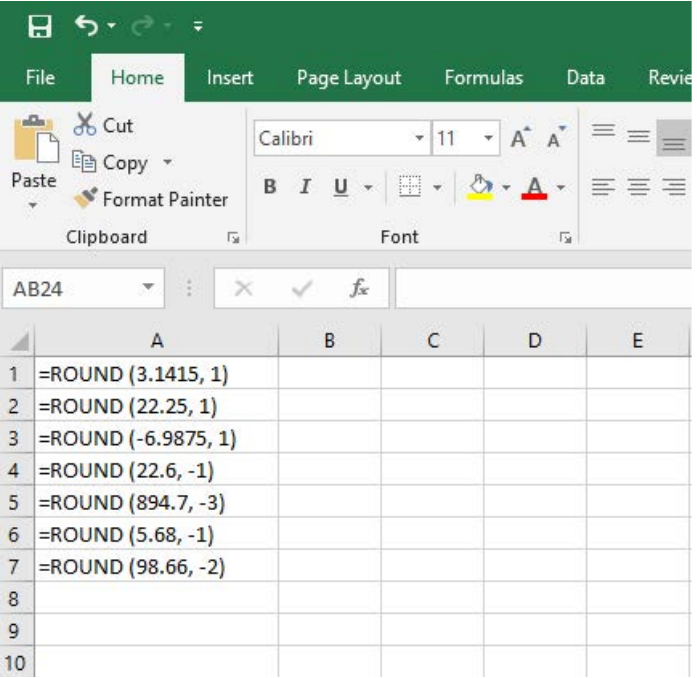
=ROUND(3.1415, 1)→ Result: 3.1 (rounds π to 1 decimal place)=ROUND(22.25, 1)→ Result: 22.3 (rounds to 1 decimal place)=ROUND(-6.9875, 1)→ Result: -7.0 (rounding works with negative numbers too)=ROUND(22.6, -1)→ Result: 20 (rounds to the nearest 10 using negative precision)=ROUND(894.7, -3)→ Result: 1000 (rounds to the nearest thousand)
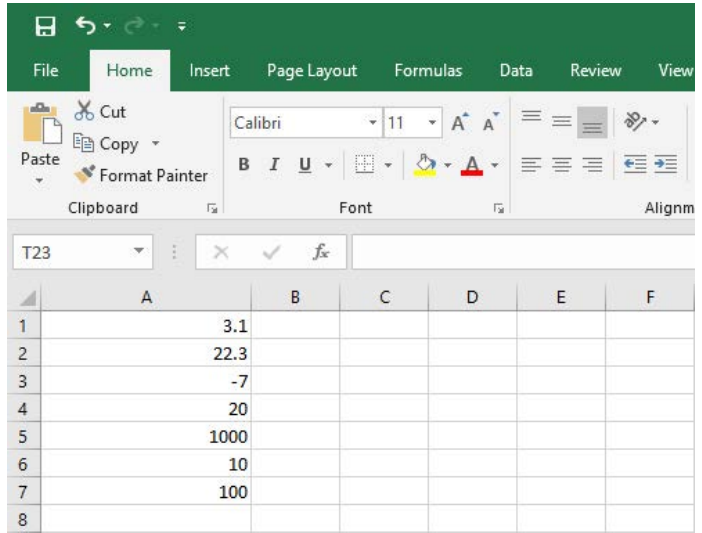
When you use these formulas, you get clean, rounded results that are perfect for presentations and reports.
Important distinction: rounding vs formatting
Important
Critical Concept: Many students confuse rounding with formatting, but they're quite different.
Rounding actually changes the value stored in the cell using functions like ROUND. Formatting only changes how the number appears on screen without changing the actual value stored in the cell.
In everyday life, rounding is commonly used to make numbers easier to estimate, communicate, or work with. For instance, you might use rounding to make long decimal numbers shorter, to report the results of complex calculations, or round off currency values. Excel's ROUND function actually alters the value in a cell, so if you refer to that cell in any other formula, the rounded value will be used in all calculations.
The POWER function
The POWER function returns the result of a number raised to a specific power. For example, if you have the value 2 in cell A1 and you want to know what 2 to the power of 10 equals, you would enter =POWER(A1, 10) to get the answer 1,024.
Example
Alternative Syntax Example
Interestingly, you can also use the caret symbol (^) instead of the POWER function:
=POWER(A1, 10)→ Result: 1,024=A1^10→ Result: 1,024 (same result, different syntax)
Statistical functions: the COUNT family
Excel provides several counting functions that help you analyse your data effectively. Understanding the differences between these functions is essential for accurate data analysis:
- COUNT: Counts cells containing numerical values only
- COUNTA: Counts cells containing any type of information (numbers, text, formulas)
- COUNTBLANK: Counts the number of empty cells in a range
Note
These functions are particularly useful when you're working with large datasets and need to understand how much data you have or identify missing information. They're essential tools for data validation and quality control.
Common essential functions
Here are five fundamental functions that every Excel user should know. These form the foundation of most data analysis tasks:
| Function | Description | Example |
|---|---|---|
| SUM | Adds all the values in a cell range | =SUM(B2) |
| AVERAGE | Calculates the average of the values | =AVERAGE(B2) |
| COUNT | Counts the number of cells that have numerical values | =COUNT(B2) |
| MIN | Finds the minimum value in a specific cell range | =MIN(B2) |
| MAX | Finds the maximum value in a specific cell range | =MAX(B2) |
The SMALL and LARGE functions
The SMALL and LARGE functions are incredibly useful for finding ranked values in your data. They return the smallest or largest value based on a position that you specify from a set of values.
SMALL function: Finds the nth smallest value in a range LARGE function: Finds the nth largest value in a range
Example
Worked Example: Finding Ranked Values
If you have a list of numbers in cells A1 to A16, you can:
- Enter
=SMALL(A1:A16, 4)to find the fourth smallest number in the range - Enter
=LARGE(A1:A16, 2)to find the second largest number in the range
For instance, if your range contains the values [10, 5, 8, 15, 3, 12, 7]:
=SMALL(A1:A7, 4)→ Result: 8 (the 4th smallest value)=LARGE(A1:A7, 2)→ Result: 12 (the 2nd largest value)
Note
Exam Tip for SMALL and LARGE Functions
Always keep the data range in mind when you're applying LARGE and SMALL functions. For example, if you're looking for the fastest lap time in a race, remember that the fastest time will actually be the smallest number, not the largest!
Using cell references in functions
Remember that you can use cell references in your functions instead of typing actual numbers. For example, instead of =ROUND(23.7825, 2), you could use =ROUND(A1, 2) if the number 23.7825 is stored in cell A1. This makes your spreadsheet much more flexible and allows you to change values without rewriting formulas.
Note
Using cell references instead of hard-coded values is considered best practice in Excel. It makes your spreadsheets more dynamic, easier to maintain, and less prone to errors when data changes.
Summary
Key Points to Remember:
- Functions are built-in formulas that perform specific calculations automatically
- The Function Library on the Formulas tab gives you access to over 400 functions
- Formula Intellisense helps you find and use functions correctly by showing suggestions and descriptions
- ROUND function actually changes the stored value, while formatting only changes the display
- COUNT functions help you analyse your data: COUNT (numbers only), COUNTA (everything), COUNTBLANK (empty cells)
- SMALL and LARGE functions are perfect for finding ranked values in your datasets
- Always use cell references in functions to make your spreadsheets more flexible and easier to maintain