Tables and Queries (Grade 11 NSC Matric Computer Application Technology): Revision Notes
📚Revision Notes
Designing Database Tables
Why database design matters
Creating a well-designed database is crucial for getting accurate and current information whenever you need it. When you understand the fundamentals of proper database design, you can build databases that adapt to your changing requirements and provide reliable results.
Before you start building a database from scratch, it's worth checking if Microsoft Access has any existing templates that might suit your needs. These templates are professionally designed and can save you time - you can always customise them later to fit your specific requirements.
Basics of good database design
Good database design follows two essential principles that ensure your database works effectively:
- No redundant data - avoiding unnecessary duplication
- Correct and complete information - ensuring data accuracy and completeness
Important
These two principles form the foundation of all good database design. Every decision you make when designing your database should support these goals.
Understanding redundant data
Redundant data occurs when the same information appears in multiple places within your database. This creates several problems that can seriously impact your database's effectiveness.
Note
Problems caused by redundant data:
- Takes up unnecessary storage space
- Can lead to errors when creating reports
- Makes data updates difficult and inconsistent
When data is duplicated and later updated in one location but not others, your database becomes unreliable. Any reports or conclusions based on this inconsistent data will also be unreliable.
Benefits of good database design
A properly structured database design offers significant advantages for both data management and system performance.
A well-designed database:
- Divides information into subject-based tables to minimise redundant data
- Provides the database system with the information needed to join tables correctly
- Helps maintain data accuracy and integrity
- Matches your data processing and reporting requirements
Planning your database structure
Before creating database tables, you need to follow a systematic approach to ensure your design meets your requirements.
The essential planning steps are:
- Determine the database purpose - decide what it will be used for
- Identify the information you want to store - list all the data you need to track
- Organise information by subject - group related data together
- Design your tables - create the structure that best represents your data
Example
Worked Example: Planning Customer Database Structure
If you have a spreadsheet containing customer details with information like:
- Company name 2. Contact name
- Telephone number 4. Email address
- Street address, city, province 6. Post code
You would break this down into logical tables. The easiest approach is to create a visual representation using paper, a whiteboard, or a spreadsheet to plan your table structure.
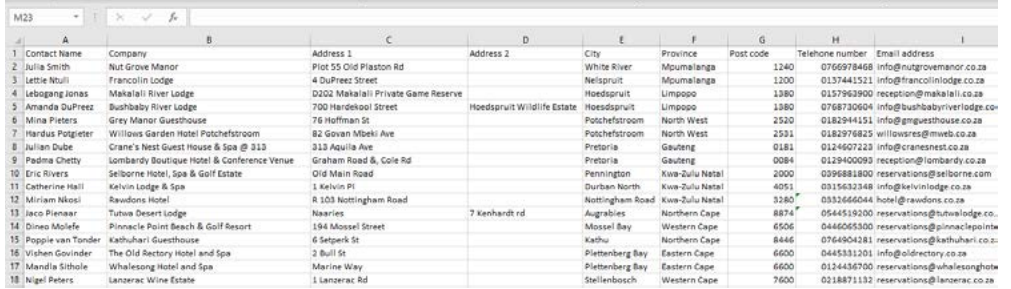
This example shows how customer data might initially appear in a single spreadsheet. However, this approach leads to redundant data and makes the database difficult to maintain.
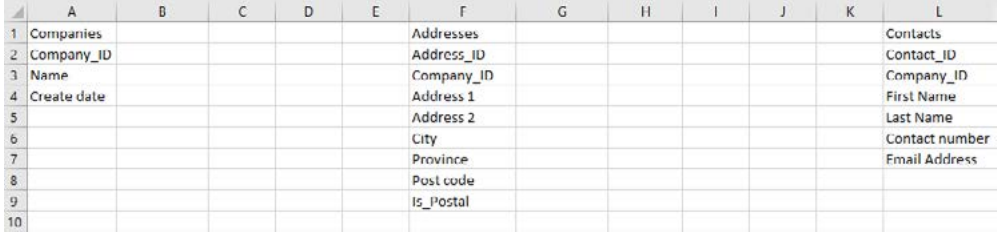
A better approach separates the information into related tables: Companies, Addresses, and Contacts. Each table focuses on a specific subject area and uses ID fields to link related information together.
Choosing appropriate data types
The data types you select for your fields depend on the information you're storing and how you plan to use it. While you may be familiar with basic data types, there are additional specialised types that can enhance your database functionality.
Special data types worth considering
Understanding these specialised data types can significantly improve your database's functionality and user experience.
Hyperlinks: These store web addresses or links that users can click to navigate to websites, documents, or other resources. They're particularly useful for contact databases or resource lists.
Lookups: These display a predefined list of values, either from another table/query or from values you specify when creating the field. Lookups help ensure data consistency and make data entry faster.
OLE (Object Linking and Embedding): This allows you to embed or link files created in other programmes, such as Word documents, Excel spreadsheets, images, or other multimedia files directly into your Access database.
Field properties
When setting up your database fields, you'll need to configure various properties that control how data is stored, displayed, and validated. Understanding these properties helps you create more robust and user-friendly databases.
Key field properties explained
| Property | Purpose |
|---|---|
| Size/length | Controls the maximum amount of space allocated for each field value. For text fields, this limits character count. For number fields, it determines the range of values that can be stored |
| Default value | Automatically fills in a specific value when new records are created. Useful for fields that commonly contain the same value |
| Decimal places | Sets how many decimal places appear when displaying numbers, particularly important for currency and measurement fields |
| Required | Forces users to enter data in this field before they can save the record. Essential for key information like names or IDs |
| Input mask | Creates a template that guides users on the correct format for entering data, such as phone numbers or postal codes |
| Validation rule | Sets criteria that data must meet before it can be saved, preventing invalid entries |
| Validation text | Displays a helpful error message when users try to enter data that doesn't meet the validation rule |
| Text align | Determines how text appears in the field (left, right, or centre aligned) |
Note
The most critical field properties for maintaining data quality are Required, Validation rule, and Validation text. These work together to ensure users enter accurate, properly formatted data.
Input masks, validation rules and validation text
These three features work together to ensure data quality and consistency in your database. While they may seem complex initially, they're powerful tools for preventing data entry errors.
Input masks
Input masks provide a template that shows users exactly how to format their data entry. They consist of three parts:
- Mask characters - define the required format using special symbols
- Storage setting - determines whether formatting characters are saved with the data
- Placeholder character - shows users where to type (usually an underscore)
Common input mask characters
| Character | Purpose |
|---|---|
| 0 | Required digit (0-9), no signs allowed |
| 9 | Optional digit or space, no signs allowed |
| L | Required letter (A-Z) |
| ? | Optional letter (A-Z) |
| A | Required letter or digit |
| & | Any character or space (required) |
| C | Any character or space (optional) |
| < | Converts following characters to lowercase |
| > | Converts following characters to uppercase |
Important
Remember the key input mask characters:
- Use 0 for required digits
- Use L for required letters
- Use ? for optional letters
- Use > to force uppercase, < to force lowercase
Validation rules
Validation rules prevent users from entering incorrect data by checking entries against specific criteria before saving. Understanding the different types helps you implement appropriate data validation.
There are two types:
- Field validation rules - check individual field values
- Record validation rules - check relationships between fields in the same record
Validation rule examples
Text validation:
| Rule | Purpose |
|---|---|
:coderef[Like "G*"] | Word must start with the letter G |
:coderef["M" Or "F"] | Only allows 'M' (Male) or 'F' (Female) entries |
:coderef[Like "*@*"] | Ensures entry contains @ symbol (basic email validation) |
:coderef[Is Not Null] | Field cannot be left empty |
Number validation:
| Rule | Purpose |
|---|---|
:coderef[>0] | Only positive numbers greater than zero |
:coderef[>=5] | Numbers greater than or equal to 5 |
:coderef[>=10 And <=100] | Numbers between 10 and 100 (inclusive) |
:coderef[Between 10 And 100] | Alternative syntax for range validation |
:coderef[2 Or 3 Or 4] | Only allows values of 2, 3, or 4 |
Date validation:
| Rule | Purpose |
|---|---|
:coderef[>#2019/02/28#] | Only dates after 28 February 2019 |
:coderef[Between #2019/03/01# And #2019/03/31#] | Only dates in March 2019 |
:coderef[>Date()] | Only dates after today |
Important
Critical syntax reminder for dates in Access: Dates should follow South African format (yyyy/mm/dd) and must be enclosed in hash symbols (#). This is essential for proper validation rule functionality.
Validation text
When users enter data that violates a validation rule, the validation text appears as an error message. Make these messages clear and helpful, explaining what went wrong and how to fix it.
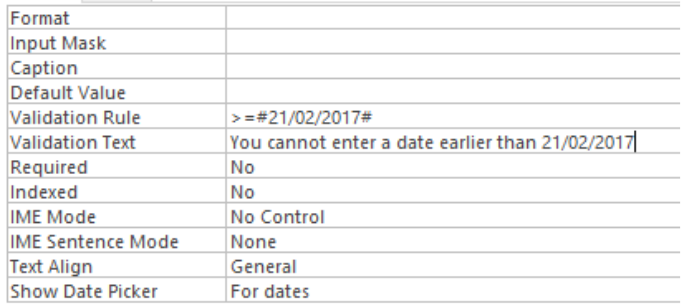
Example
Worked Example: Creating Effective Validation Messages
If your validation rule is :coderef[>=#21/02/2017#], your validation text might be "You cannot enter a date earlier than 21/02/2017". This gives users specific guidance on what they need to correct.

The error message appears immediately when invalid data is entered, preventing the record from being saved until the issue is resolved.
Practical implementation
When implementing these features, follow these guidelines to ensure both data quality and user satisfaction.
Note
Implementation best practices:
- Start simple - begin with basic input masks and validation rules, then add complexity as needed
- Test thoroughly - try entering various types of data to ensure your rules work correctly
- Write clear messages - make validation text helpful and specific
- Consider user experience - balance data quality with ease of use
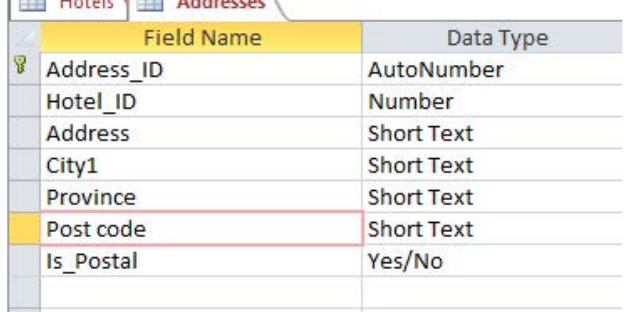
This shows a typical table design view where you can see how different field properties are applied to create a well-structured database table.
Exam tips and common pitfalls
Understanding these key points will help you succeed in database design questions and avoid the most common mistakes students make.
Summary
Key Points to Remember for Exams:
- Know the two main principles: No redundant data, and correct & complete information
- Understand field properties: Especially validation rules, input masks, and required fields
- Practice validation syntax: Remember that text goes in quotes, dates in hash symbols
- Plan before building: Always determine purpose and organise information first
Important
Common Mistakes to Avoid:
- Forgetting hash symbols around dates in validation rules
- Making validation text too vague or unhelpful
- Creating overly complex input masks that confuse users
- Not considering how tables relate to each other
- Storing the same information in multiple places
Note
Question Strategies:
- When asked about database design, always mention both main principles
- For validation questions, provide both the rule and appropriate validation text
- If asked to improve a database design, look for redundant data that could be moved to separate tables
Remember!
Summary
Essential Database Design Concepts:
- Good database design prevents redundant data and ensures complete, accurate information
- Plan your database structure before creating tables - determine purpose, identify information needs, and organise by subject
- Use appropriate field properties like validation rules and input masks to maintain data quality and guide user input
- Validation rules use specific syntax: text in quotes, dates in hash symbols (#), and numbers without quotes
- Always provide clear, helpful validation text messages that explain what went wrong and how to fix it