Integration, Problem Solving, and Troubleshooting (Grade 11 NSC Matric Computer Application Technology): Revision Notes
📚Revision Notes
Integration, Problem Solving, and Troubleshooting
Integration with other packages
Excel works brilliantly with other Microsoft Office applications like Word and Access. When you create charts and graphs in Excel, you can link them to Word documents so they update automatically when you change the Excel data. You can also import Excel spreadsheets directly into Word documents.
The power of integration lies in creating dynamic connections between applications, which eliminates the need for manual updates and ensures consistency across all your documents. This seamless workflow is particularly valuable in professional environments where reports and presentations require current data.
Linking charts and graphs to Word
When you want to include Excel charts in Word documents, the best approach is to create a link between the two applications. This means any changes you make to your Excel data will automatically appear in your Word document. The chart stays connected to its original data source.
The most straightforward method to insert an Excel chart into Word is using the copy and paste function with special linking options. Here's how the process works:
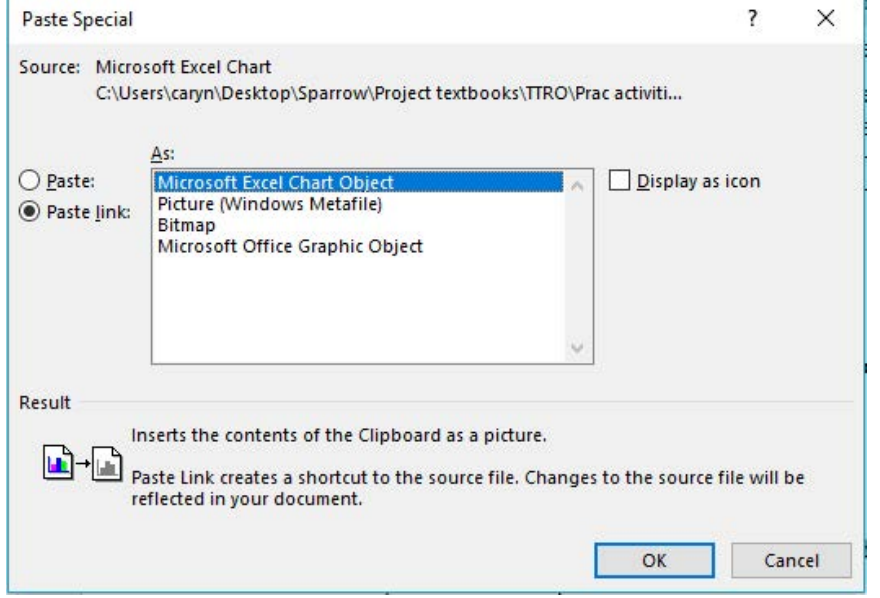
First, you select your chart in Excel and copy it using Ctrl+C or the Copy option from the Home tab. Then, in your Word document, you position your cursor where you want the chart to appear. Instead of using regular paste, you select Paste Special from the Home ribbon and choose the Microsoft Excel Chart Object option.
Note
The Paste Special dialogue box shows you several important options. When you select "Paste link" and choose "Microsoft Excel Chart Object", you're creating a dynamic connection. This means your chart will remain linked to the original Excel spreadsheet data, and any updates you make in Excel will automatically reflect in your Word document.
The great advantage of this linking method is that your chart stays current. When you update the data in Excel, you don't need to manually recreate or replace the chart in Word – it updates itself automatically. This saves time and ensures consistency across your documents.
Problem solving approaches
Excel serves as a powerful tool for solving real-world problems, but success depends on having a clear end goal in mind. You need to think about what you want your data to demonstrate and plan how you'll present your findings. Not every problem requires complex formulas – sometimes simple calculations can provide exactly what you need.
Understanding the problem-solving process in Excel involves more than just knowing formulas and functions. It requires developing analytical thinking skills and learning to break complex scenarios into manageable components that Excel can handle effectively.
Developing problem-solving skills
When approaching problems with Excel, the key is breaking them down into manageable steps. You need some basic mathematical understanding and knowledge of how Excel formulas and functions operate. The process becomes much easier when you plan your approach systematically.
Excel can initially seem overwhelming when you're looking at a complex problem. However, with proper planning and step-by-step thinking, you'll discover you already have the skills needed to find solutions. The secret lies in methodical approach rather than trying to solve everything at once.
Important
Success in Excel problem-solving comes from patience and systematic thinking. Avoid the temptation to create overly complex formulas when simple, step-by-step calculations will achieve the same result more reliably.
Real-world problem solving example
Example
Worked Example: Car Savings Calculation
Consider this scenario: Julia wants to buy a car after finishing school but before starting university. She knows she needs to save money but doesn't know exactly how much to set aside each month. At the start of Grade 11, her parents promise to give her 50 cents for every rand she saves towards the car.
Julia researches and finds the car she wants costs R150,000. Now she needs to calculate how much money she must save, minus her parents' contribution, to afford the car by the end of her Grade 12 year.
To solve this systematically, Julia breaks the problem into clear steps:
Step 1: She calculates how much she needs to save each month over 24 months by entering the car cost in a cell and using the formula:
Step 2: She determines her potential total savings using this monthly amount, which equals R150,000 over two years.
Step 3: Since she can only manage R3,000 monthly savings, she calculates her parents' contribution using the formula where her monthly contribution equals R3,000:
Analysis: Julia's total monthly progress = R3,000 + R1,500 = R4,500 Over 24 months:
Conclusion: Julia discovers she'll only reach R108,000 – not enough for the R150,000 car in two years. This analysis helps Julia understand she needs to save for longer or adjust her car choice.
This example demonstrates how Excel helps break complex financial decisions into clear, manageable calculations that reveal practical solutions. The systematic approach transforms an overwhelming question into a series of simple mathematical operations.
Troubleshooting techniques
Even when you're careful entering data and creating formulas, problems can occur with Excel spreadsheets. Sometimes these issues are simple to identify and fix, while other times you might struggle to determine what went wrong. Learning systematic troubleshooting approaches will save you time and frustration.
The key to effective troubleshooting is understanding that Excel errors usually follow predictable patterns. Most problems fall into common categories, each with specific diagnostic techniques and solutions.
Understanding common spreadsheet errors
Excel provides tools to help you identify and resolve formula problems, including the Formula Auditing group in the Formulas tab. However, you don't always need advanced tools – often, understanding common error patterns is sufficient to solve most issues.
The error indicators you learned about earlier provide valuable clues about what's wrong. When Excel cannot calculate a formula, it displays specific error messages that point to the problem type. Learning to recognise these errors and understand their meanings helps you correct issues quickly.
Note
Excel's error messages are designed to be informative. Rather than ignoring error indicators, take time to understand what each message means. This knowledge will make you more efficient at diagnosing and fixing problems.
Systematic troubleshooting approach
When Excel gives you an unfamiliar error or something less obvious appears wrong, you need to try different troubleshooting strategies. The key is working through problems methodically rather than randomly changing things.
Wrong results often occur when formulas return incorrect values based on your parameters. To solve this, highlight the problematic cell and press F9. Excel will evaluate the expression and show you the result in the formula bar, helping you identify errors in your formula logic.
Overly simple formulas might indicate your data is more complex than the formula suggests. Check whether your formula spans multiple lines or contains hidden elements. You can use the Expand Formula Bar button or the down arrow to view the complete formula structure.
Incorrect values sometimes appear when formulas return dates instead of numbers. This typically happens when cells are formatted as Date or Time rather than Number or General. Changing the cell formatting usually resolves this issue.
Functions displaying as text occur when you enter formulas that display as their text representation rather than calculating values. Ensure your cell isn't formatted as text and verify you've included the equals sign at the beginning of your expression.
Important
Always check cell formatting when troubleshooting unexpected results. Many apparent "formula errors" are actually formatting issues that can be resolved by changing how Excel displays the data.
Using Excel's help resources
Sometimes even experienced Excel users need assistance. The Help function provides a useful resource for finding solutions or looking up specific information. You can access help files in Excel through three main methods:
Press F1 on your keyboard to open the Help pane directly. Alternatively, type your question into the "Tell me what you want to do" box at the top of the document tabs. You can also select File and then the question mark icon in the top right corner.
These help options connect you to comprehensive guidance on Excel functions, troubleshooting tips, and step-by-step instructions for complex tasks. The help system includes search functionality, so you can find specific information quickly rather than browsing through extensive documentation.
Summary
Key Points to Remember:
-
Excel integrates seamlessly with other Office applications – Use Paste Special with "Paste link" option to create dynamic connections between Excel charts and Word documents that update automatically.
-
Problem-solving requires systematic planning – Start with your end goal, break complex problems into smaller steps, and use simple formulas to build towards your solution.
-
Troubleshooting follows predictable patterns – Most Excel errors fall into common categories like wrong results, formatting issues, or formula display problems, each with specific solution approaches.
-
Error indicators provide valuable clues – Learn to recognise Excel's error messages and use tools like F9 key evaluation and formula bar expansion to identify problems quickly.
-
Help resources are readily available – Use F1, the "Tell me" search box, or File menu help options to access Excel's comprehensive assistance when you encounter unfamiliar issues.