Templates (Grade 11 NSC Matric Computer Application Technology): Revision Notes
📚Revision Notes
Templates
What are templates?
Templates are incredibly useful tools in spreadsheet applications like Excel. They allow you to create a pre-formatted workbook that can be used repeatedly without having to recreate the same structure, formulas, and formatting each time. Think of a template as a master copy that serves as the foundation for new documents.
Templates are particularly valuable when you frequently work with similar types of documents, such as:
- Stock-taking sheets
- Product lists with specific formulas
- Invoices or quotations
- Budget planners
Note
The key advantage is that once you create a template, it remains unchanged and ready to use. When you work with a template, any data you add gets saved as a completely new file with a different name, leaving your original template intact for future use.
Setting up your personal templates location
Before creating your first template, it's important to configure where your personal templates will be stored. This makes them easily accessible whenever you need them.
Here's how to set up your default personal templates location:
Step 1: Navigate to the File menu and select Options.
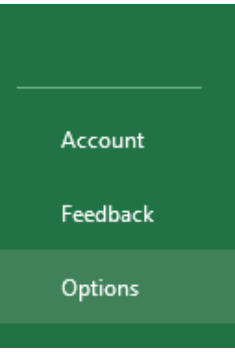
Step 2: In the Options dialogue, locate and select Save from the list of categories.
Step 3: Look for the section dealing with template locations. You'll need to enter the path where you want your personal templates stored.
The typical path for personal templates is: C:\Users[UserName\Documents\Custom Office Templates]
Important
Once this location is configured, all custom templates you create will automatically appear in the My Templates folder, making them easily accessible through the Personal section when creating new files.
Creating a template from an existing workbook
Converting a workbook into a reusable template involves using the export function to change the file type. Here's the step-by-step process:
Step 1: Open the workbook that you want to convert into a template.
Step 2: Access the File menu and select Export.
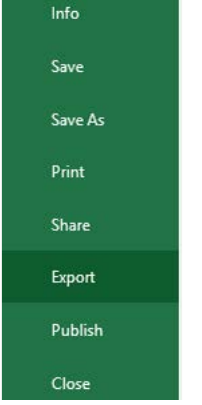
Step 3: From the Export options, choose "Change File Type".
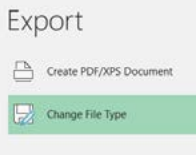
Step 4: In the file type selection dialogue, look for and double-click on "Template" from the available workbook file types.
Step 5: In the Save As dialogue that appears, enter an appropriate name for your template. The file will automatically be saved with the .xltx extension, which indicates it's an Excel template file.
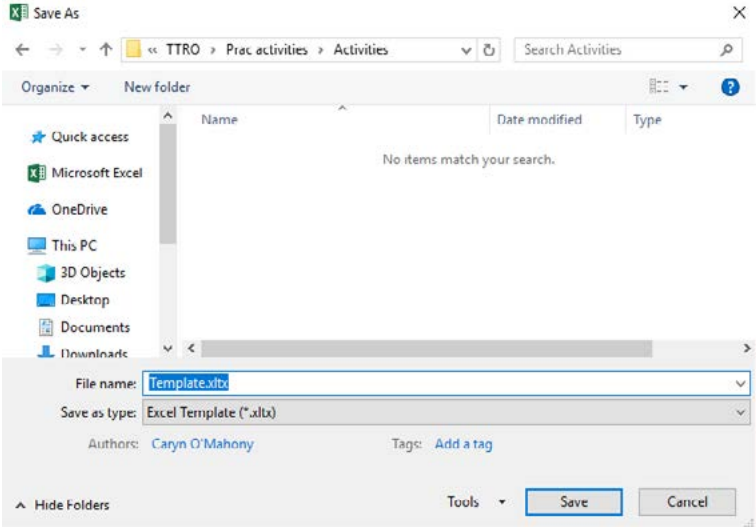
Step 6: Click Save to create your template, then close the original workbook.
Using your created templates
Once you've created a template, using it to create new workbooks is straightforward. Instead of searching through various template options, you can access your personal templates directly.
To use a template you've created:
- Start creating a new workbook
- Look for the Personal section in the template options
- Select your custom template from the My Templates folder
- Begin working with your pre-formatted document
Practical example: creating a stock management template
Example
Worked Example: Creating a Stock Management Template
Creating the template structure:
- Set up column headers in cells A1 to E1: Item, Units, Unit price, Price, VAT
- Add formulas for calculations (e.g., =C2*B2 for total price, =C2*1.15 for price including VAT)
- Format the spreadsheet with appropriate styling
Saving as template:
- Follow the export process described above
- Give it a meaningful name like Stock-on-hand.xltx
- The template is now ready for repeated use
Using the template:
- Each time you need to create a new stock list, select your template
- Add your specific data
- Save the completed document with a new filename
- Your original template remains unchanged for future use
Exam tips for templates
Important
Essential Exam Knowledge:
- Remember the file extension: Excel templates use the .xltx file extension
- Know the navigation path: File > Export > Change File Type > Template
- Understand the difference: Templates are master copies; documents created from templates are separate files
- Location matters: Setting up the personal templates location first makes templates easier to find
- Templates save time: Emphasise this benefit in exam answers about why templates are useful
Remember!
Summary
Key Points to Remember:
-
Templates are reusable master documents - they provide a foundation that can be used repeatedly without changing the original
-
Set up your personal templates location first - this makes your custom templates easily accessible through the Personal section
-
Use File > Export > Change File Type > Template - this is the standard method for converting any workbook into a template
-
Templates save time and ensure consistency - they eliminate the need to recreate formatting, formulas, and structure for similar documents
-
The .xltx file extension identifies Excel templates - knowing this helps you recognise template files and understand file types in exam questions