Editing (Grade 11 NSC Matric Computer Application Technology): Revision Notes
📚Revision Notes
Editing
When working with documents in Microsoft Word, editing tools help you modify and manipulate content efficiently. Two essential editing functions are Paste Special and Find and Replace, which give you greater control over how you work with text and graphics.
Note
These advanced editing features can significantly improve your productivity when working with complex documents, especially when you need to maintain consistent formatting or make widespread changes.
Paste special
Paste Special is a powerful feature that gives you different options for how content appears when you paste it into your document. Instead of just using the regular paste function, Paste Special allows you to choose exactly how you want the copied content to be inserted.
Accessing paste special
To use Paste Special in Microsoft Word, you need to first copy some text or graphics from another source. Once you have content in your clipboard, you can access Paste Special by clicking the drop-down arrow under the Paste button in the Home ribbon.
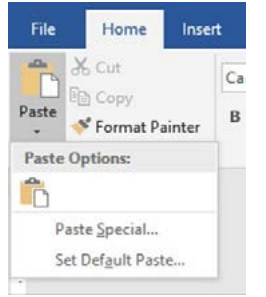
The Paste Special option will appear in the dropdown menu, giving you access to more advanced pasting choices.
Paste special options for text
When you're pasting text content, Paste Special provides several formatting options to choose from. These options determine how the text will appear in your document and whether it keeps its original formatting or adopts the formatting of your current document.
Note
Understanding these text formatting options is crucial for maintaining document consistency and professional appearance.
The text paste options typically include:
- Keep source formatting - maintains the original appearance of the copied text
- Match destination formatting - changes the text to match your document's current style
- Keep text only - removes all formatting and pastes plain text
- HTML format - preserves web-based formatting if copying from online sources
Paste special options for graphics
When working with images and graphics, Paste Special offers different format choices that affect how the image is stored and displayed in your document.
The graphics paste options include various image formats such as:
- Picture formats - different image file types like JPEG, PNG, or GIF
- Enhanced metafile - a scalable vector format
- Bitmap - a standard image format
- Device independent bitmap - a universal image format
Example
Practical Example: Choosing Graphics Format
When pasting a logo from a website:
- Copy the image from your source
- Click the dropdown arrow under Paste
- Select "Paste Special"
- Choose "Picture (PNG)" for web graphics or "Enhanced Metafile" for scalable images
- Click OK to paste with your chosen format
Choosing the right format depends on how you plan to use the image and what quality you need.
Find and replace
The Find and Replace function is an incredibly useful tool that helps you quickly locate specific words or phrases in your document and replace them with different text. This saves enormous amounts of time when you need to make consistent changes throughout a long document.
Accessing find and replace
You can access the Find and Replace function in two ways:
- Click on Replace in the Home ribbon
- Use the keyboard shortcut Ctrl+H (a quick way to remember this is "H" for "Hunt and replace")
Using the find and replace dialogue
The Find and Replace dialogue box has two main sections:
- Find what - where you type the text you're looking for
- Replace with - where you type the text that should replace what you found
After entering both pieces of information, you can choose to replace instances one at a time or replace all instances at once.
Advanced replace options
For more precise control over your search and replace operations, Word provides several advanced options:
Find whole words only
This option prevents partial matches within larger words. For example, if you search for "man" with this option selected, it won't match "manual" or "human" - only the complete word "man". This prevents unintended replacements that could change the meaning of words.
Important
Always consider using "Find whole words only" when replacing common letter combinations to avoid accidentally changing words you didn't intend to modify.
Match case
When this option is selected, the search becomes case-sensitive. This means "CAT" would not match "cat" or "Cat". This is particularly useful when dealing with proper nouns, acronyms, or when case matters for the meaning.
Format options
The Format feature allows you to search for and replace text that has specific formatting. For example, you could find all bold text containing "important" and replace it with "critical" while maintaining the bold formatting, or even change the formatting to a different style.
Special characters
The Special option lets you search for and replace punctuation marks, spaces, and other special characters. This is helpful for cleaning up documents, such as replacing double spaces with single spaces, or changing regular dashes with em dashes.
Practical tips for find and replace
When using Find and Replace, it's important to be careful with your replacements. If you don't use the advanced options appropriately, you might accidentally change words you didn't intend to modify. Always consider using "Find whole words only" when replacing common letter combinations, and review your changes before applying them to the entire document.
Example
Worked Example: Safe Text Replacement
Replacing "colour" with "colour" throughout a document:
Step 1: Press Ctrl+H to open Find and Replace
Step 2: In "Find what" box, type "colour"
Step 3: In "Replace with" box, type "colour"\
Step 4: Click "More" to expand options
Step 5: Check "Find whole words only" to avoid changing "colourful" to "colourful"
Step 6: Click "Replace All" to make all changes safely
The Find and Replace function becomes especially powerful when combined with the advanced options, allowing you to make precise, targeted changes across large documents efficiently.
Summary
Key Points to Remember:
- Paste Special gives you control over how copied content appears in your document, with different options for text and graphics
- Access Paste Special through the dropdown arrow next to the Paste button in the Home ribbon
- Find and Replace helps you quickly locate and change text throughout your document using Ctrl+H
- Use Find whole words only to prevent partial word matches and avoid unintended changes
- Match case makes your search case-sensitive, useful for proper nouns and acronyms
- The Format and Special options provide advanced control for replacing formatted text and special characters