Templates (Grade 11 NSC Matric Computer Application Technology): Revision Notes
📚Revision Notes
Templates
What are templates and why use them?
Templates are incredibly useful tools in word processing that help you save time and energy when creating documents. Think of a template as a pre-designed document format that you can use again and again. Instead of starting from scratch every time you need to create a CV, report, or letter, you can simply open a template that already has the basic structure and formatting in place.
Note
Templates are particularly helpful because they only need to be set up once, but can be used repeatedly. This means you can spend time perfecting the layout, fonts, colours, and spacing once, then use that same professional-looking format for multiple documents.
Microsoft Word comes with many ready-made templates for different types of documents, but the real power comes from learning how to create your own customised templates that match your specific needs and style preferences.
Understanding what makes a template
A template is essentially a document that has been formatted to a specific style and saved in a special way. When you create a template, you can:
- Set up consistent formatting including font types, sizes, and colours
- Include predefined text areas and headings with specific styling
- Create fields that you can fill in with different information each time you use the template
- Establish consistent spacing and layout elements
Note
Templates contain special fields that are labelled to show what information should go in each section. These fields make it easy to create new documents because you simply fill in the blanks rather than recreating the entire document structure.
Creating your own template
Learning to create your own templates gives you complete control over your document formatting. Here's how to turn any Word document into a reusable template:
Step-by-step guide to template creation
Example
Worked Example: Creating a Custom Template
Step 1: Start with your document Open a blank document in Word and create the content you want to use as your template. Format it exactly how you want it to appear each time you use the template. When you're satisfied with the layout and formatting, select "File" from the ribbon menu, then choose "Save As".
Step 2: Choose your storage location Double-click on "Computer" or "This PC" to access your local storage options.
Step 3: Name your template In the Save As dialogue box, type a descriptive name for your template in the "File name" box. Choose a name that clearly identifies what type of document this template is for, such as "Article template" or "Business letter template".
Step 4: Select the template format This is the crucial step that actually turns your document into a template. In the "Save as type" dropdown list, look for and select "Word Template". This changes the file extension to .dotx, which tells Word that this is a template file rather than a regular document.
Step 5: Choose your save location Browse through your computer's folder structure to find where you want to save your template. You might want to create a special "Templates" folder to keep all your custom templates organised.
Step 6: Complete the save process Click the "Save" button to finalise creating your template.

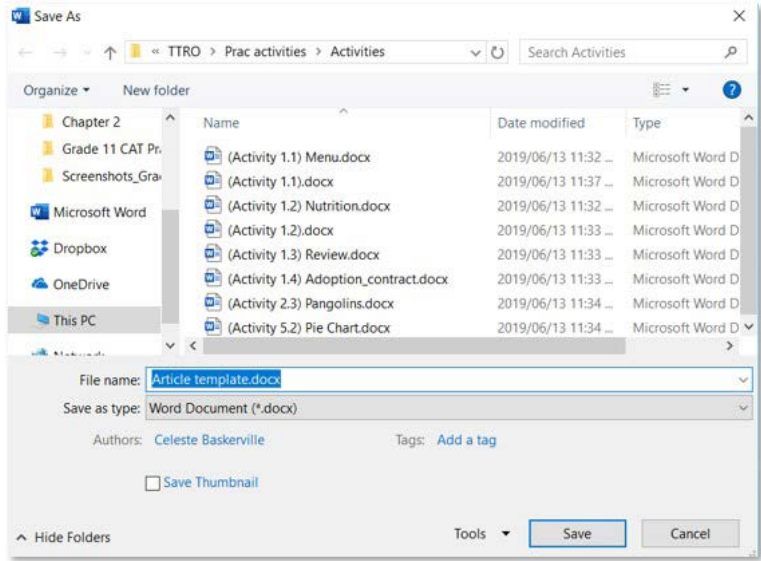
The dropdown menu will show several options including:
- Word Document (.docx) - regular document format
- Word Template (.dotx) - the format you need for templates
- Word 97-2003 Template (.dot) - older template format
- Various other formats for different purposes
Using your template
Once you've saved a document as a template, you can use it to create new documents without affecting the original template.
Note
When you open a template, Word automatically creates a new document based on that template's formatting and content, leaving the original template unchanged and ready to use again.
File format importance
Important
The key to creating templates is understanding that you must save them in a template format (.dotx) rather than the regular document format (.docx). This special format tells Word to treat the file as a template, which means:
- Opening the template creates a new document rather than editing the template itself
- The template remains unchanged and available for future use
- Word recognises it as a template in template galleries and search functions
Remember!
Summary
Key Points to Remember:
- Templates save time - Create the formatting once, use it many times
- Templates ensure consistency - All documents using the same template will have the same professional appearance
- Save as template format - Use .dotx format instead of regular .docx to create true templates
- Templates contain fillable fields - These make it easy to customise each new document you create
- Custom templates give you control - You're not limited to Word's pre-built templates and can create exactly what you need