Bitmap Image Size and Colour Depth (AQA GCSE Computer Science): Revision Notes
📚Revision Notes
Bitmap image size and colour depth
What is a bitmap image?
A bitmap image is made up of tiny squares called pixels. Each pixel can display a different colour, and when you put thousands of these pixels together, they create the complete image you see on screen.
Note
Think of it like a digital mosaic - the more pieces (pixels) you have, the more detailed your picture becomes. This analogy helps us understand why higher resolution images look sharper and more detailed.
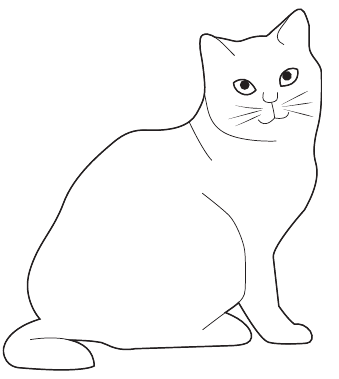
The simple cat drawing shown above helps us understand how bitmap images work. Even this basic image is made up of many individual pixels arranged in rows and columns.
Understanding image size
The image size of a bitmap tells us how many pixels wide and how many pixels tall the image is. We always measure this as width × height in pixels.
For example:
- A small image might be 100 × 150 pixels (100 pixels wide, 150 pixels tall)
- A larger image could be 1920 × 1080 pixels (common for HD displays)
Calculating total pixels
To find out how many pixels are in an image, you multiply the width by the height:
Example
Worked Example: Calculating Total Pixels
For an image that's 100 × 150 pixels:
- Width = 100 pixels
- Height = 150 pixels
- Total pixels = 100 × 150 = 15,000 pixels
What is resolution?
Resolution refers to how many pixels are packed into a given physical space. A higher resolution image has more pixels crammed into the same area, which means:
- The image appears sharper and more detailed
- More data is needed to store the image
- The file size becomes larger
Note
Think of resolution like the difference between a rough sketch and a detailed photograph - both might show the same thing, but one has much more detail packed in.
Understanding colour depth
Colour depth (also called bit depth) tells us how many different colours each pixel can display. This depends on how many bits of data we use to store each pixel's colour information.
How bits determine colours
The number of possible colours follows a simple rule:
Here's how it works:
- 1 bit per pixel: colours (usually black and white)
- 2 bits per pixel: colours
- 3 bits per pixel: colours
- 8 bits per pixel:
- 16 bits per pixel:
Binary representation of colours
When we use 2 bits per pixel to create 4 different colours, we might assign:
- 00 = white
- 01 = red
- 10 = green
- 11 = black
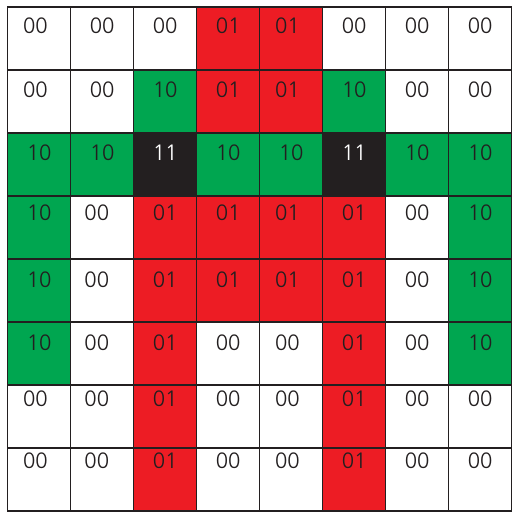
Example
Worked Example: Binary Colour Codes
This grid shows how binary codes (combinations of 0s and 1s) can represent different colours in a simple image pattern. Each binary combination corresponds to a specific colour value.
The relationship between colour depth and file size
Important
Critical Relationship: More colours mean bigger files.
As we increase the colour depth:
- Each pixel needs more bits to store its colour information
- The total file size grows significantly
- Image quality improves with more colour options available
Real-world example
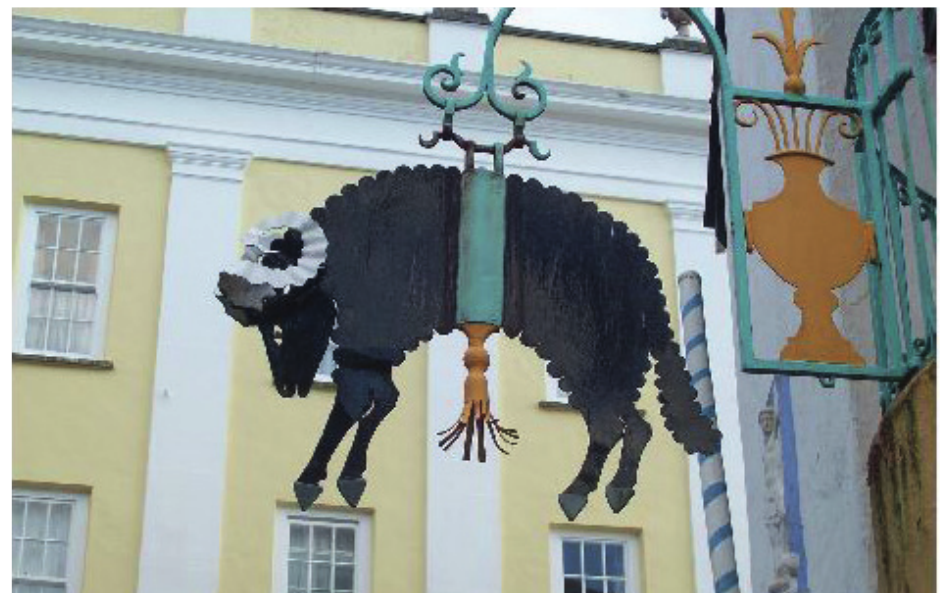
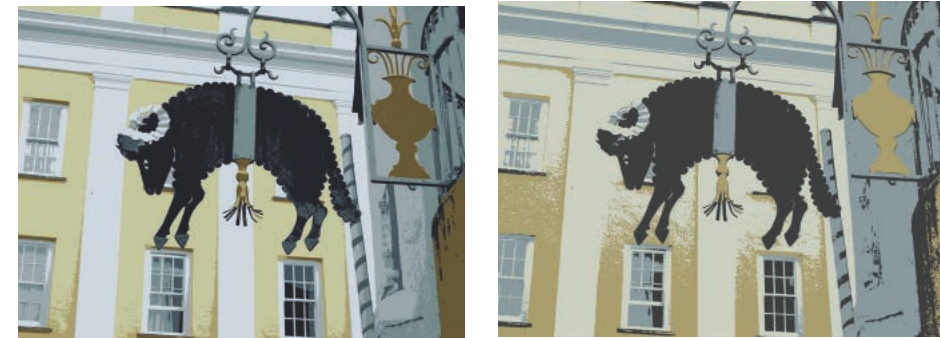
These images demonstrate how reducing colour depth affects both image quality and file size. The original image with 256 colours (8-bit depth) was 1.2 MB in size. When reduced to just 8 colours, the file size dropped to 787 KB, and with only 4 colours, it became just 542 KB.
Calculating file size
To work out how much storage space a bitmap image needs:
- Find total pixels: width × height
- Multiply by bits per pixel: total pixels × colour depth (in bits)
- Convert to bytes: divide by 8 (since 8 bits = 1 byte)
Example
Worked Example: File Size Calculation
For an image that's 100 × 150 pixels with 8-bit colour depth:
Step 1: Calculate total pixels
- Total pixels = 100 × 150 = 15,000 pixels
Step 2: Calculate total bits needed
- Total bits = 15,000 × 8 = 120,000 bits
Step 3: Convert to bytes
- File size = 120,000 ÷ 8 = 15,000 bytes (or about 15 KB)
Practical considerations
When working with bitmap images, you need to balance three factors:
- Image quality: Higher colour depth gives better quality
- File size: More colours create larger files
- Storage/bandwidth: Larger files take more space and longer to transfer
For different purposes, you might choose different colour depths:
- Web graphics: Often 8-bit (256 colours) for smaller file sizes
- Professional photography: 16-bit or higher for maximum quality
- Simple graphics: 4-bit or less for very small files
Summary
Key Points to Remember:
- Bitmap images are made of pixels arranged in a grid pattern
- Image size = width × height in pixels
- Resolution refers to pixel density - more pixels in the same space means higher quality
- Colour depth determines how many colours each pixel can display using the formula
- Higher colour depth creates better quality images but larger file sizes
- File size can be calculated using: bytes