Basics of Access (Grade 11 NSC Matric Computer Application Technology): Revision Notes
📚Revision Notes
Basics of Access
What is a database?
A database organises large amounts of information into structured files called tables. Think of it as a digital filing system that helps you store, manage, and update data in a systematic way. Instead of having information scattered across different documents, a database keeps everything organised and easily accessible.
Tables form the foundation of any database system. Just like spreadsheets, database tables use a grid structure with columns and rows to organise information systematically.
Note
Think of a database like a digital library - instead of books scattered everywhere, everything is catalogued, organised, and easy to find when you need it.
Database uses in real life
Databases are everywhere in our daily lives, even when we don't realise it. Here are some common examples:
- Medical practices: Doctors use databases to store patient information, medical histories, and treatment records
- Schools: Educational institutions maintain databases with student details, subjects, marks, and attendance records
- Retail businesses: Shops track their inventory using databases, monitoring stock levels through barcode scanners at checkout points
- Large corporations: Companies store sales data, customer information, and employee records across multiple locations
- Cities and municipalities: Local governments use databases to track everything from library books to traffic patterns
Essentially, any organisation that needs to store and access large amounts of information efficiently will benefit from using a database system.
The four database objects
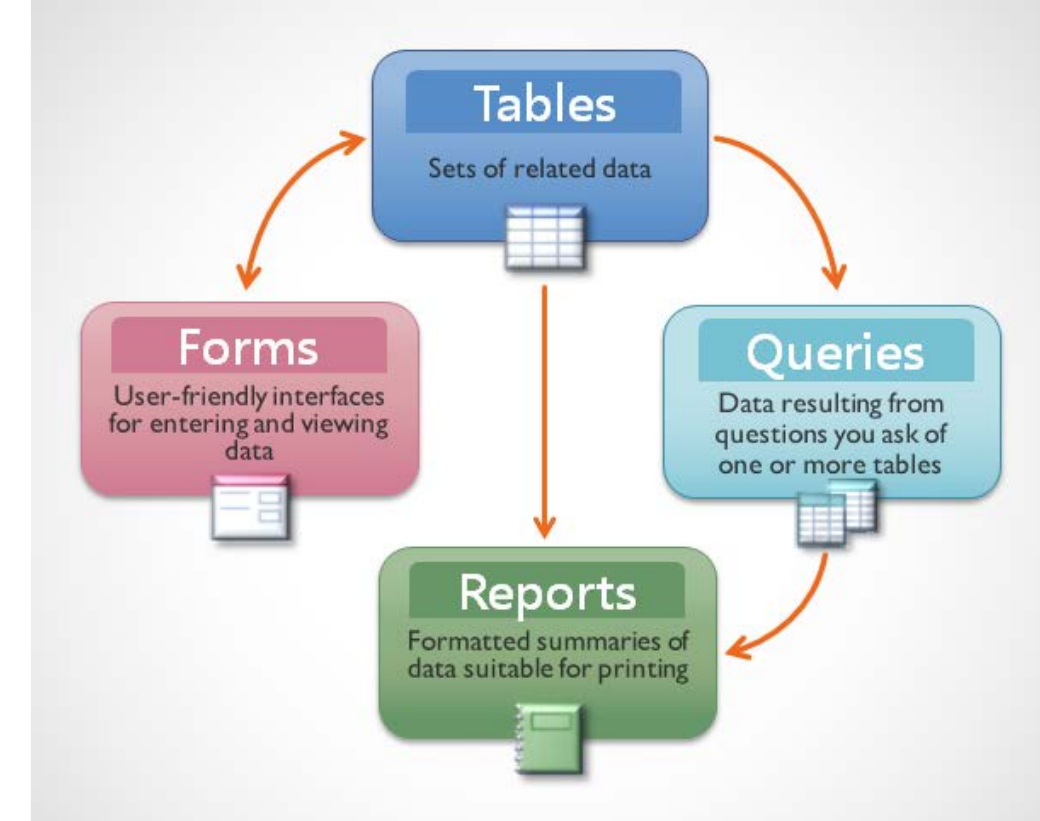
Microsoft Access databases consist of four main components that work together to help you manage information effectively:
Tables
Tables are the heart of any database - they're where all your actual data lives. Similar to Excel worksheets, tables organise information into vertical columns (called fields) and horizontal rows (called records). Every other database object depends on tables for the information they display or process.
Tables provide structure and ensure data consistency across your entire database system.
Forms
Forms create user-friendly interfaces that make entering and viewing data much easier. Rather than working directly with raw table data, forms guide users through the data entry process step by step.
Forms standardise how information gets entered into your database, helping maintain consistency and accuracy. They can include dropdown menus, date pickers, and validation rules to prevent incorrect data entry. When you complete a form, the information automatically saves to the appropriate database table.
Queries
Queries function like detailed search tools for your database. When you need to find specific information from one or more tables, you create a query with your search criteria.
Queries are much more powerful than simple table searches. They can combine information from multiple tables, perform calculations, and philtre results based on complex conditions. Think of queries as asking specific questions of your database and getting precisely the answers you need.
Reports
Reports present your data in formatted, professional layouts suitable for printing or sharing. Examples include timetables, report cards, invoices, and summary documents.
Reports can draw information from any table or query, allowing you to create customised presentations of your data. You can control the layout, formatting, and calculations to make your information clear and attractive.
How they work together
Note
These four objects create a complete data management system. Tables store the information, forms provide easy data entry, queries help you find specific data, and reports present your findings professionally. The arrows in the diagram show how data flows between these components, creating an integrated workflow for database management.
Records, fields and field names
Understanding the basic structure of database tables is essential for working with Access effectively.
Fields are the vertical columns in a database table. Each field contains one specific type of information, such as names, telephone numbers, or email addresses. The field name describes what type of data that column contains.
Records are the horizontal rows in a database table. Each record contains all the information about one particular item or person. For example, in a student database, one record would contain all the details about a single student.

Example
Understanding Table Structure
In the example table shown above:
- Each field (ID, Username, Full name, Email address, Password) contains one type of information
- Each record represents one complete user account with all their details
- The first record might contain: ID=1, Username="john_doe", Full name="John Doe", etc.
Data types in Access
When creating database fields, you must specify what type of data each field will contain. Access offers several data types, each designed for specific purposes:
| Data Type | Purpose | Example |
|---|---|---|
| Text | Stores up to 255 characters of text (called Short Text since Access 2013) | Usernames stored in a Username field |
| Number | Stores numerical values for calculations (not currency) | Contact numbers in a Contact Number field |
| Date/Time | Stores dates and times | User registration date in Date and Time fields |
| Currency | Stores monetary values with proper formatting | Donation amounts in a Donations field |
| AutoNumber | Automatically generates unique numbers for each record | User ID field that creates unique identifiers |
| Yes/No | Stores Boolean (true/false) values | Newsletter subscription status (Yes or No) |
| Memo | Stores large blocks of text over 255 characters (called Long Text since Access 2013) | Thank you notes or detailed comments |
| Hyperlink | Stores web addresses or file paths up to 2048 characters | Website URLs or UNC network paths |
| OLE Object | Attaches files that require OLE features | Microsoft Excel spreadsheets |
| Attachment | Attaches various file types to records | Images, documents, charts, and other supported files |
Important
Choosing the correct data type is crucial because it determines what operations you can perform on that data and how Access will store and validate the information. A common mistake is using Text for numbers when you need to perform calculations - always use Number or Currency data types for mathematical operations.
Summary
Key Points to Remember:
-
A database organises large amounts of information into structured tables - this makes data management much more efficient than using separate files
-
The four database objects work together: Tables store data, Forms provide user-friendly data entry, Queries search and philtre information, and Reports present data professionally
-
Fields are columns (vertical) and Records are rows (horizontal) - each field contains one type of data, each record contains complete information about one item
-
Data types determine what kind of information each field can store - choosing the right data type ensures your database works properly and prevents data entry errors
-
Databases are used everywhere - from doctor's offices to retail stores, any organisation dealing with large amounts of information benefits from database systems