Queries (Grade 11 NSC Matric Computer Application Technology): Revision Notes
📚Revision Notes
Queries
What are queries?
Queries are powerful tools that act as the bridge between you and your database information. Think of them as your way of having a conversation with the database - you ask questions, and the database provides answers. Rather than manually searching through multiple tables to find what you need, queries can quickly pull together exactly the information you're looking for.
Note
Using queries makes working with databases much more efficient. Instead of spending ages looking through different tables to create a report or find specific information, queries can gather data from various sources, combine it, and present it in exactly the format you need. They also help you avoid mistakes that might happen when working through data manually.
In a well-organised database, information is typically spread across several tables. Queries excel at bringing together related information from these different tables, saving you considerable time and effort.
Types of queries
There are two main categories of queries that you need to understand:
Select queries are used when you want to retrieve and display information from your database. These queries can also perform calculations on your data. Think of them as asking "Show me all customers who live in Cape Town" or "Calculate the total sales for last month."
Action queries are more powerful - they actually change your database by adding new records, updating existing information, or removing data entirely. These require more caution since they modify your actual data.
Important
Action queries permanently modify your database content. Always make a backup before running action queries, and test them carefully with sample data first.
For this unit, we'll focus on select queries, which are the foundation of database querying and the type you'll use most frequently.
Design basic queries
Once you understand how to create queries in Access, you'll find that working with your database becomes much faster and more precise. When you need to find specific information from one or more tables, select queries become your best tool. They help you display only the data you actually need and can combine information from several different sources.
There are two main approaches to creating queries in Access, each with its own advantages:
Method 1: Query design view
The Query Design approach gives you complete control over every aspect of your query, but it requires more attention to detail. This method involves several careful steps, and it's important to complete each one properly before moving to the next.
Example
Worked Example: Creating a Query in Design View
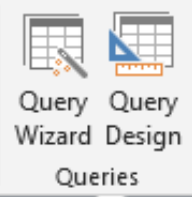
Step 1: Add your data sources Start by selecting Query Design from the Queries group on the Create tab. This opens the query design workspace where you'll build your query.
The first thing you'll see is the Show Table dialogue box. Here, you need to double-click each table that contains information you want to include in your query. After selecting all the tables you need, click Add and then close this dialogue box.
Step 2: Choose your output fields In the Query Design Window, you'll see a list of available fields from your selected tables. Choose the specific fields you want to display in your query results by selecting them from the field list. When you add a field, Access automatically fills in the Table row of the design grid, showing you which table each field comes from.
Step 3: Set your criteria This step is crucial - your query will only work properly if you specify criteria to philtre your results. Without criteria, you'll see all records from your tables, which usually isn't what you want.
Type your criteria in the Criteria row of the query design grid. The data should match the format used in your table. For example, if you want to find all General Managers, you would type "General Manager" in the criteria field.
Advanced criteria techniques:
To find records matching multiple criteria, use the Or field in the query design grid. This will show records where either one condition or another is met.
To exclude certain records, use "Not" in your criteria. For example, typing "Not 'General Manager'" would show all records except those with General Manager as the title.
To find records that match two or more conditions simultaneously, use "And" between your criteria. For instance, "General Manager" And "Hospitality Manager" would find records containing both terms.
Method 2: Query wizard approach
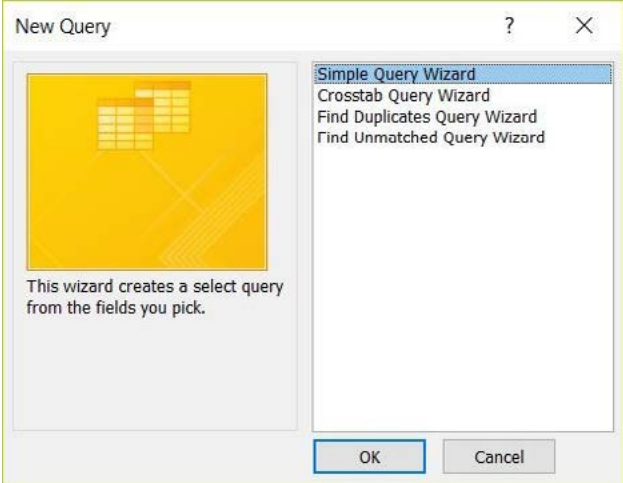
The Query Wizard provides a more guided approach to creating queries. While it offers less detailed control than Design View, it's often quicker and less prone to errors for straightforward queries.
Note
The Query Wizard is ideal for beginners or when you need to create simple queries quickly. You can always switch to Design View later if you need more advanced customisation options.
Start by selecting Query Wizard from the Queries group on the Create tab, then choose Simple Query Wizard from the options presented.
The wizard will guide you through selecting your data sources and choosing which fields to include in your query. You can pick fields from multiple tables during this process.
After selecting your fields, the wizard gives you options for how you want to view your results - either as a detailed query showing individual records, or as a summary that groups and analyses your data.
Once you finish with the wizard, you can view your results immediately or switch to Design View if you need to make more detailed modifications.
Running and viewing your queries
After creating your query, you'll want to see the results. Access provides several ways to view and work with your query results:
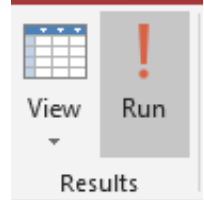
Click the Run button on the Design tab to execute your query and see your results. Access will display the results in Datasheet View, which looks similar to a spreadsheet with your filtered data.
If you need to make changes to your query, you can switch back to Design View by selecting it from the View options. This allows you to modify fields, add or change criteria, and adjust other query settings.
Note
For queries that include calculations or summaries, you might want to use the Totals function. With your query open in Design view, select Totals from the Show/Hide group on the Design tab. This adds a Total row to your query design grid, where you can choose different functions depending on your data type.
You can continue refining your query by changing fields, adjusting criteria, or modifying expressions until the results show exactly what you need.
Summary
Key Points to Remember:
- Queries are your main tool for retrieving specific information from databases quickly and accurately
- Select queries display data and perform calculations, while action queries modify your database content
- Query Design View offers complete control but requires careful attention to each step in the process
- Query Wizard provides a guided approach that's faster for simple queries but with less customisation
- Proper criteria specification is essential - use AND for multiple conditions, OR for alternatives, and NOT to exclude records