File Management (Grade 11 NSC Matric Computer Application Technology): Revision Notes
📚Revision Notes
File Management
File management in word processing involves organising, saving, printing, and sharing your documents effectively. Understanding how to manage your files properly will help you work more efficiently and keep your documents organised and accessible.
Understanding file managers
A file manager is a built-in application that helps you organise files and folders on your computer. When working with files, it's important to follow good naming practices. File names should be short and descriptive, clearly indicating what the document contains. File extensions (like .docx or .pdf) tell your computer which programme to use when opening specific files.
Important
Good File Naming Practices:
- Keep names short but descriptive
- Avoid special characters like /, , :, *, ?, ", <, >, |
- Use consistent naming conventions across all your documents
- Include dates or version numbers when necessary
The file menu and backstage view
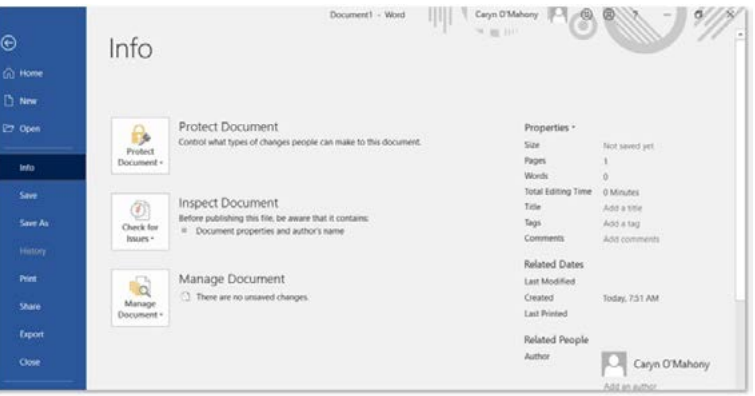
The File menu is your gateway to all document management functions in Microsoft Word. You can access it by clicking the "File" button in the top left-hand corner of any Word document.
When you select the File menu, Word opens the Backstage View, which provides access to various document management options including saving, printing, sharing, and viewing document properties.
Note
The Backstage View allows you to manage documents without leaving Word. From here, you can change document properties, set printing options, send documents via email, convert files to PDF format, and share documents through cloud storage services.
Viewing document properties
Document properties contain important information about your files, including when they were created, last modified, file size, word count, and editing time. This information helps you track document versions and understand file details at a glance.
Example
Accessing Document Properties in Microsoft Word:
Step 1: Select "Info" from the File menu
Step 2: Click the arrow next to "Properties"
Step 3: Choose "Advanced Properties" to see detailed information
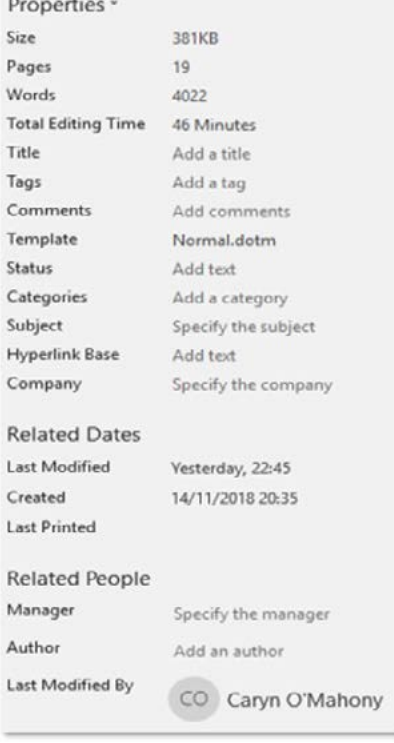
The properties window displays comprehensive document statistics including file size, page count, word count, total editing time, creation date, and modification history. You can also see who created the document and who last modified it, which is particularly useful when working on collaborative projects.
Printing documents
Word offers extensive printing options to help you control how your documents appear on paper while minimising ink and paper usage.
Basic print settings
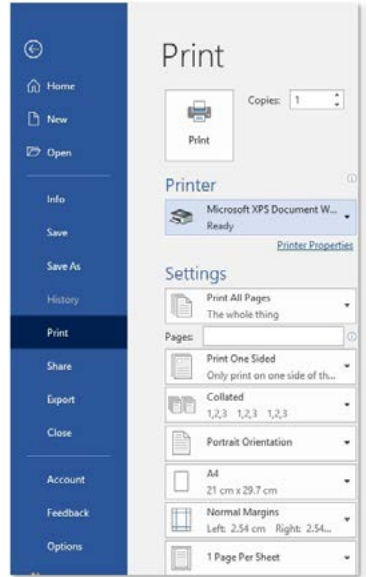
When you access the Print menu through File > Print, you'll see several important options:
- Print range: Choose to print all pages, specific pages, or just selected content
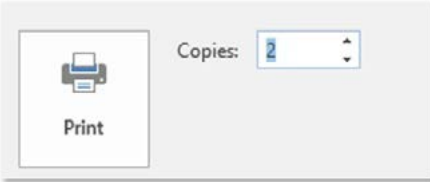
- Number of copies: Specify how many copies you need
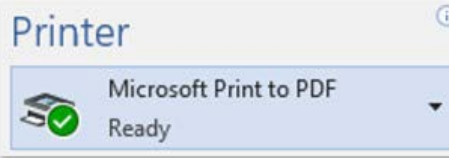
- Printer selection: Choose your desired printer or print to PDF
Advanced print options
For more control over your printing:
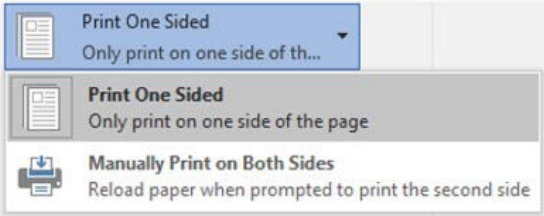
- Duplex printing: Choose between single-sided or double-sided printing to save paper
- Page orientation: Select portrait or landscape layout
- Print quality: Choose between draught mode (saves ink) or high-quality printing
Note
You can specify exactly which pages to print by entering page ranges (like 1-5 or 1,3,7) in the custom print section. This is particularly useful for long documents when you only need specific sections.
Print quality and layout options
Important
Cost-Saving Print Tips:
- Always select the appropriate print quality for your needs
- Draught mode uses less ink and prints faster
- Reserve high-quality mode for important final documents only
- Consider printing multiple pages per sheet for drafts
You can also choose how many pages to print per sheet, which is helpful for creating handouts or saving paper when printing drafts.
Export/print to file (creating PDFs)
Converting documents to PDF format creates files that cannot be easily edited, making them ideal for sharing final versions or submitting assignments.
Example
Creating a PDF from Your Word Document:
Step 1: Go to File > Print
Step 2: Change your printer selection to "Microsoft Print to PDF"
Step 3: Click Print
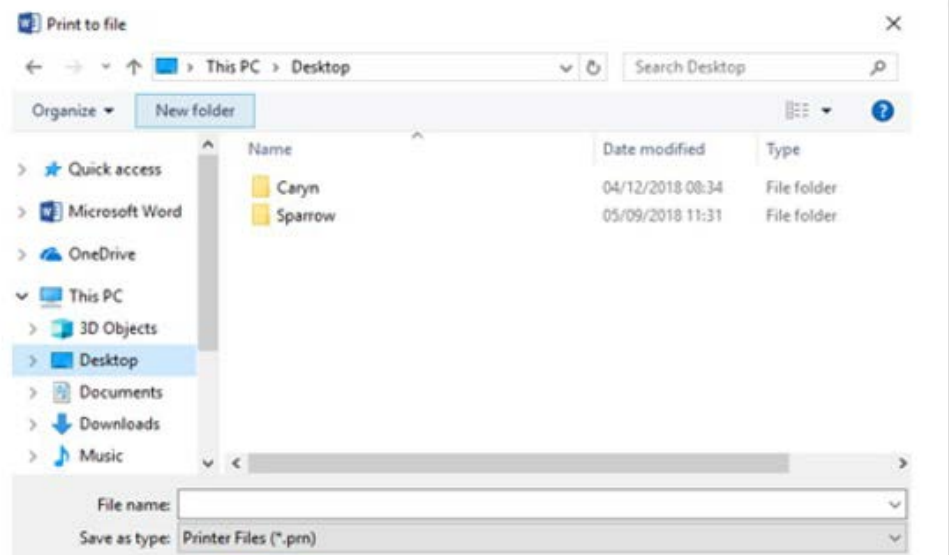
Step 4: Choose where to save your PDF file and give it a name
Note
The PDF creation process maintains your document's formatting while making it accessible on any device, regardless of whether Word is installed.
Saving in different file formats
Word supports multiple file formats to ensure compatibility with different programmes and users:
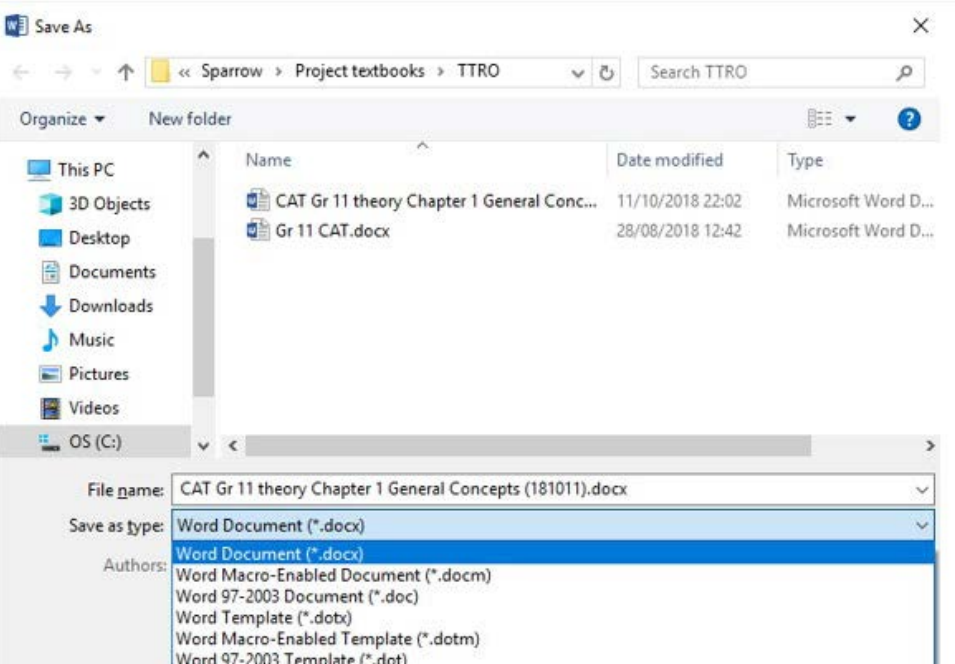
- Document (.docx): The standard Word format with full feature support
- Word 97-2003 Document (.doc): Compatible with older Word versions
- OpenDocument Text (.odt): Compatible with open-source programmes like LibreOffice
- Template (.dotx): Creates reusable document templates
- Plain text (.txt): Text-only format without formatting
- Rich Text Format (.rtf): Maintains basic formatting across different programmes
- Single File Web Page (.mhtml): Creates web-compatible files with embedded media
Important
When saving or printing to PDF, remember that the original document remains unchanged and editable. The PDF is simply a copy in a different format.
Send to/share documents
Modern word processing includes various options for sharing documents with others, either as email attachments or through cloud storage services.
Email sharing
You can share documents directly through email programmes by attaching the file:

Example
Sharing Documents via Email:
Step 1: In your email programme, click the paperclip (attachment) icon
Step 2: Browse and select the document you want to share
Step 3: The document will be attached to your email for sending
Cloud storage sharing
Documents can also be shared through cloud storage services like OneDrive, Google Drive, or Dropbox. These services allow multiple people to access and collaborate on documents simultaneously, making them ideal for group projects and professional collaboration.
Note
Cloud sharing provides several advantages:
- Documents are accessible from any device with internet access
- Multiple people can edit simultaneously
- Version history is automatically maintained
- Files are backed up automatically
Remember!
Summary
Key Points for Effective File Management:
- File organisation matters - Use clear, descriptive file names and organise documents in logical folders
- Properties provide valuable information - Check document properties to track editing time, word count, and modification history
- Print settings save resources - Use draught mode and duplex printing to conserve ink and paper
- PDF format preserves documents - Convert final documents to PDF to prevent accidental editing
- Multiple sharing options exist - Choose between email attachments and cloud storage based on your collaboration needs