Import/Export Data (Grade 11 NSC Matric Computer Application Technology): Revision Notes
📚Revision Notes
Import/Export Data
Importing and exporting data is a fundamental skill in word processing that allows you to bring content from other applications and file formats into your documents. This process ensures you don't lose any information when transferring data between different programmes and file types. Understanding these techniques will help you create more comprehensive documents by combining content from various sources.
Note
Unlike simple copy and paste operations, proper import/export techniques preserve formatting, data integrity, and provide more control over how external content integrates with your documents.
What is importing and exporting data?
When you import data, you're bringing content from external files into your current word processing document. This could be text from a simple text file, data from a spreadsheet, or even entire documents. The importing process ensures that all content transfers accurately, unlike basic copy and paste operations which might miss formatting or data.
There are several methods for importing data, each suited to different types of content and situations. The method you choose depends on whether you want the imported content to remain connected to its original source or become a standalone part of your document.
Methods of importing data
Text from file method
The most straightforward way to import text content is using the Text from File feature. This method works well when you have text-based files that you want to incorporate into your document.
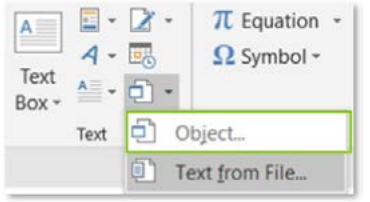
To use this method, you need to access the Insert tab in your word processor and locate the Object options. The process involves navigating through the Text group to find the Object dropdown menu.
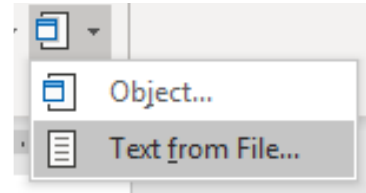
The Text from File option allows you to browse for and select text files from your computer. Once selected, the entire contents of that file will be inserted at your cursor's current position in the document.
Example
Worked Example: Using Text from File Method
Step 1: Position your cursor where you want the imported text to appear in your document
Step 2: Select the Insert tab from the ribbon menu
Step 3: Find the Text group and click on the Object dropdown
Step 4: Choose "Text from File" from the dropdown menu
Step 5: Browse and select the file containing the text you want to import
Step 6: Click Insert to add the content to your document
This method is particularly useful when you have prepared text in simple text editors or when colleagues have shared text files that need to be incorporated into larger documents.
Importing spreadsheet data
When working with numerical data, tables, or lists that originate from spreadsheet applications, you'll need a different approach. Spreadsheet data often requires special handling to maintain its structure and formatting.
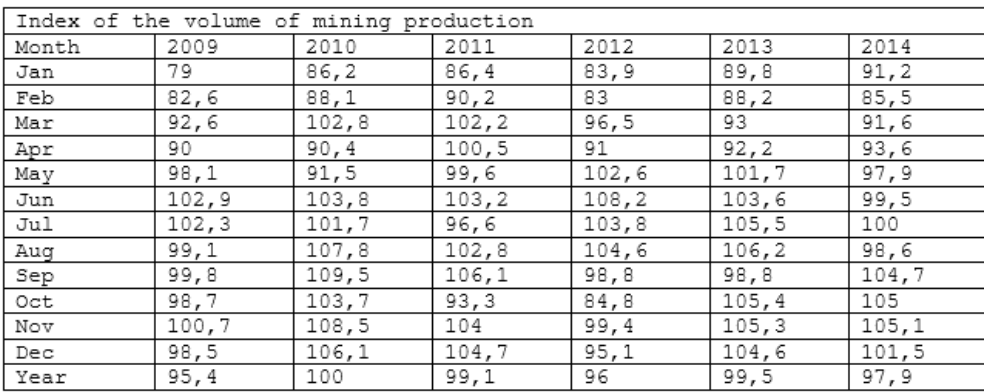
The process for importing spreadsheet data involves using the Object insertion method, but with specific considerations for maintaining data integrity. You can choose to either embed the data as a static table or maintain a link to the original spreadsheet.
Object insertion method
Object insertion is a more advanced technique that allows you to embed entire files or parts of files as objects within your document. This method gives you more control over how the imported content behaves and appears.

When using object insertion, you'll encounter two primary options:
- Create New: This option allows you to create a new object from scratch
- Create from File: This option lets you insert content from an existing file
Note
The "Create from File" option is what you'll use most often for importing data. It provides additional choices about how the imported content should behave in your document.
Step-by-step object insertion process
Basic object insertion
Example
Worked Example: Complete Object Insertion Process
Step 1: Position your cursor at the location where you want to insert the object
Step 2: Navigate to Insert tab in the ribbon interface
Step 3: Locate the Text group and select the Object option
Step 4: Choose "Object" from the dropdown menu (not "Text from File")
Step 5: Select "Create from File" tab in the dialogue box that appears
Step 6: Browse for your file using the file browser
Step 7: Select the file you want to import
Step 8: Choose your import options (linking and display preferences)
Step 9: Click OK to complete the insertion
Advanced options: linking vs embedding
When importing files as objects, you have important decisions to make about how the content should behave:
Important
Understanding the Critical Difference: Linking vs Embedding
This choice significantly affects how your document behaves and should be considered carefully based on your specific needs.
Linking to files creates a dynamic connection between your document and the source file. When you choose to link:
- Changes made to the original file will automatically appear in your document
- The file size of your document remains smaller
- You must maintain the original file location for the link to work
- Moving or deleting the source file will break the link
Embedding files creates a completely independent copy within your document. When you embed:
- The content becomes part of your document permanently
- Changes to the original file won't affect your document
- Your document file size will increase
- You can share the document without worrying about missing linked files
Display options
You can also choose how imported objects appear in your document:
Display as icon shows the imported content as a small icon representing the file type. Users can double-click the icon to open the content in its original application. This option is useful when you want to include files for reference but don't need them visible all the time.
Display as content shows the actual content of the imported file directly in your document. This option works well for tables, images, or text that should be immediately visible to readers.
Understanding file paths
When working with linked files, understanding file paths becomes important. A file path is like an address that tells your computer exactly where to find a file. It shows the route through folders and directories to locate the specific file.
Note
For example, a file path might look like: C:\Users\Student\Documents\Excel examples.xlsx
If you move the original file to a different location, the path becomes invalid and the link will break. This is why embedded objects are sometimes safer for documents that will be shared or moved between computers.
Benefits of different import methods
When to use text from file
- Simple text documents that don't require special formatting
- Content that you want to become a permanent part of your document
- Situations where you need to ensure all text transfers accurately
When to use object insertion with embedding
- Complex documents like spreadsheets or presentations
- When you need the content to remain independent of the source file
- Documents that will be shared with others who may not have access to source files
When to use object insertion with linking
- Content that changes frequently and needs to stay current
- Large files that would significantly increase your document size
- Collaborative environments where multiple people update source documents
Common challenges and solutions
Important
Critical Issues to Avoid
Broken links: If linked files are moved or deleted, the links will break. Always inform collaborators about linked files, and consider embedding important content.
File size issues: Embedding large files can make your documents unwieldy. Use linking for large files when possible, or consider including only essential portions of large datasets.
Formatting problems: Different file types may not display perfectly when imported. Test your imports and be prepared to make manual formatting adjustments.
Version control: When linking to files that others can edit, establish clear protocols about who can make changes and when.
Summary
Key Points to Remember:
- Import methods vary by content type - use Text from File for simple text, Object insertion for complex files
- Linking creates dynamic connections - changes in source files appear in your document automatically
- Embedding creates static copies - content becomes independent of the source file
- File paths must remain valid for links to work - moving source files breaks connections
- Choose display options carefully - icons save space, full content provides immediate visibility