Import/Export Data (Grade 11 NSC Matric Computer Application Technology): Revision Notes
📚Revision Notes
Import/Export Data
Working with data in Excel often means you need to bring information in from other sources or share your Excel data with people who don't have Excel. This is where importing and exporting become essential skills. Rather than manually typing in hundreds of rows of data from another programme, Excel's import function lets you quickly bring in data without mistakes. Similarly, when you need to share data with others or use it in different programmes, exporting allows you to save your work in formats that other applications can read.
Note
Understanding Import and Export
Importing means bringing data from external sources like Access databases, text files, or websites into your Excel workbook. This saves you time and reduces errors compared to manual data entry.
Exporting means saving your Excel data in different file formats so you can share it with others or use it in programmes that don't support Excel files.
In your future studies and career, you might need to analyse data from various sources like databases, websites, or research files. Learning these skills now will make you much more efficient at handling data.
Importing data
Excel can import data from many different sources. The most common ones you'll work with are:
- Microsoft Access databases
- Text files (like CSV files from websites)
- Other Excel workbooks
- Web pages
All import functions are found in the Data tab on Excel's ribbon.

Importing data from Access
Access databases often contain multiple related tables of information. When importing from Access, you can select which specific tables you want to bring into Excel. This is particularly useful when you only need certain information from a large database.
Example
Step-by-Step: Importing from Access Database
- Open a blank workbook - Start with a fresh Excel file
- Select the Data tab - Look for the ribbon at the top of Excel
- Click "From Access" - This is in the Get External Data section
- Choose your Access file - Navigate to find the database file (it will end in .accdb)
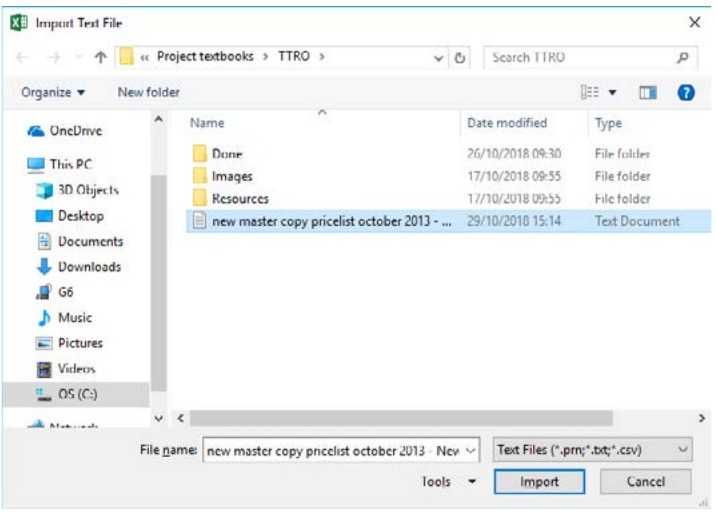
- Select tables to import - Choose which tables contain the data you need
- Choose display format - Decide how you want to view the imported data
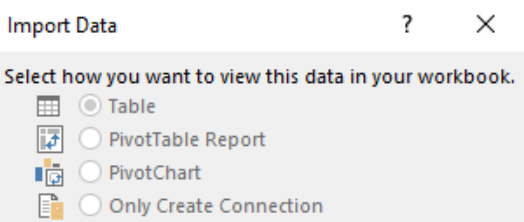
You can import the data as:
- Table - Standard Excel table format (most common choice)
- PivotTable Report - For data analysis and summaries
- PivotChart - For visual data representation
- Only Create Connection - Links to the data without importing it
Once you've selected your format and location, wait for the import process to complete. Larger databases may take a few moments to load. Your Access data will appear as separate worksheets for each table, making it easy to work with the information in Excel.
Importing data from a text file
Text files are very common when downloading data from websites or receiving data from other systems. These files often contain rows and rows of data that would be extremely difficult to analyse without importing into Excel.
The Text Import Wizard helps Excel understand how the data in your text file is structured.
Example
Step-by-Step: Importing from Text Files
- Open a blank workbook
- Select the Data tab
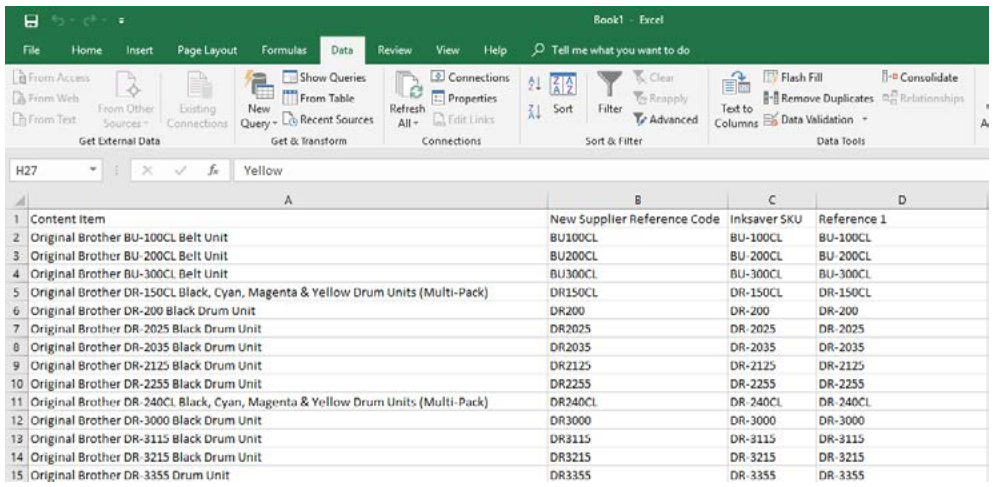
- Click "From Text" - Found in the Get External Data section
- Select your text file - Look for files ending in .txt or .csv
- Use the Text Import Wizard - This appears automatically and guides you through three steps:
Step 1: Choose file type
- Delimited - Data is separated by commas, tabs, or other characters (most common)
- Fixed width - Data is arranged in columns with specific spacing
Step 2: Select delimiters
- Comma - Most common for CSV files
- Tab - Common in data exports
- Semicolon - Sometimes used instead of commas
- Space - Less common but occasionally used
Step 3: Set data formats
- Choose whether each column should be text, numbers, or dates
- Excel usually guesses correctly, but you can adjust if needed
After completing the wizard, choose your display options (Table, PivotTable, or other formats), select where to place the imported data, and verify that your data imported correctly with proper column headings.
Exporting data
After working with your data in Excel, you might need to export it to share with others or use in different programmes. The most common reason is that not everyone has Excel, so you need to save your data in a more universal format.
Why export data?
- Sharing with non-Excel users - Some people don't have Microsoft Office
- Uploading to databases - Many systems accept CSV files
- Creating backups - Different formats provide additional security
- Using in other programs - Some software works better with specific file types
Exporting to CSV
CSV (Comma Separated Values) is the most universal data format. Almost every programme that works with data can read CSV files, making it perfect for sharing.
Example
Step-by-Step: Exporting to CSV Format
- Select File from the ribbon
- Choose Save As
- Select your save location - Pick where you want to store the file
- Change the file type - In the "Save as type" dropdown, select "CSV (Comma delimited)"
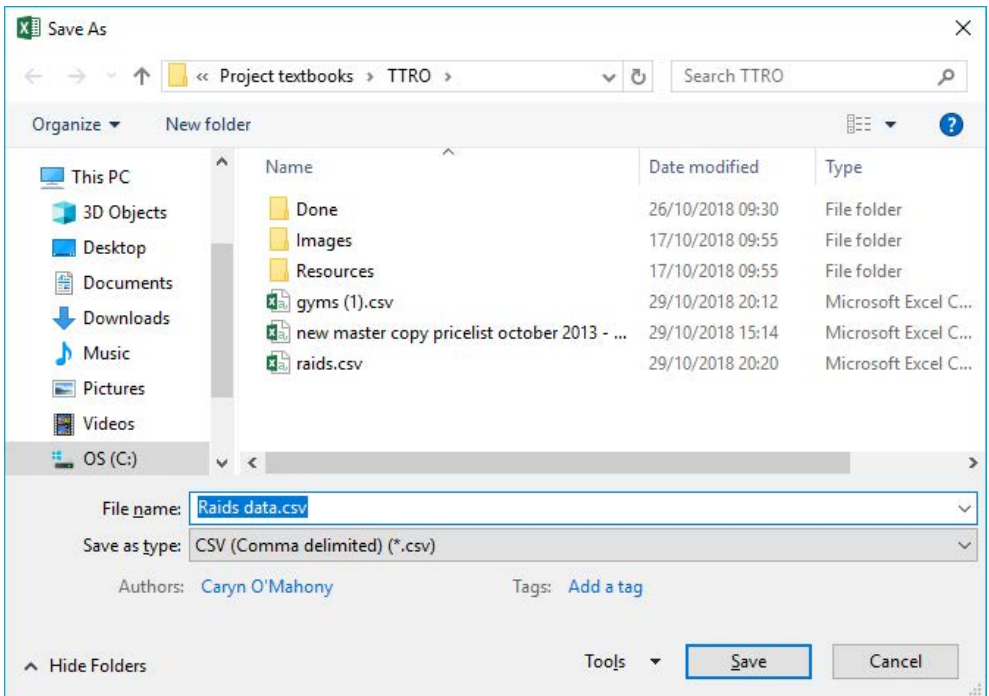
- Give your file a name - Choose a descriptive name for your CSV file
- Click Save
Important
CSV Export Warning
Excel will show you a message about losing some features when saving as CSV.

This happens because CSV files are much simpler than Excel files - they can't store things like:
- Formulas
- Formatting (colours, fonts, borders)
- Multiple worksheets
- Charts or images
Click "Yes" if you want to continue with the CSV format. Excel may ask again about the format when closing the workbook.
Your data is now saved as a CSV file that can be opened by almost any programme, shared easily via email, or uploaded to websites and databases.
Alternative methods
You can also transfer data between Excel files by simply copying and pasting. Once you have data from different sources in one workbook, you can create relationships between different sheets or compare data from multiple sources.
Summary
Key Points to Remember:
- Use the Data tab for all importing functions - look for "Get External Data" section
- Text Import Wizard helps Excel understand how your text files are structured
- Choose appropriate delimiters when importing text - comma is most common for CSV files
- CSV export loses Excel features like formulas and formatting, but creates universal files
- Always verify your imports by checking that column headings and data look correct
- Plan your file formats based on who needs to use the data and what programmes they have