Calculating Bitmap Image Size (AQA GCSE Computer Science): Revision Notes
📚Revision Notes
Calculating bitmap image size
What is bitmap image size calculation?
When you save a digital image on your computer, it takes up space on your hard drive. The amount of space it uses is called the file size. For bitmap images (like photos or simple drawings made of pixels), you can calculate exactly how much space they'll need before you even save them!
Understanding how to calculate image file sizes is really useful - it helps you know if an image will fit in your available storage space, how long it might take to upload or download, and why some images are much larger than others.
Note
Knowing how to calculate image file sizes is particularly valuable in today's digital world where we're constantly sharing photos and managing storage space on our devices. This skill helps you make informed decisions about image quality and storage requirements.
The three key components
To work out the file size of a bitmap image, you need to know three important pieces of information:
- Width: How many pixels wide the image is
- Height: How many pixels tall the image is
- Colour depth: How many bits are used to store each pixel's colour information
Think of an image like a grid of tiny coloured squares (pixels). The width and height tell you how many squares you have, while the colour depth tells you how much information is stored for each square's colour.
The calculation formula
The basic formula for calculating bitmap image size is straightforward:
Or using shorthand:
This formula works because you're multiplying:
- The total number of pixels in the image
- By the amount of data needed for each pixel
Converting bits to bytes
Computers usually measure file sizes in bytes rather than bits. Since there are 8 bits in 1 byte, you need to divide your answer by 8:
This extra step is important because file sizes are typically shown in bytes, kilobytes (KB), megabytes (MB), or gigabytes (GB).
Worked example
Example
Worked Example: Calculating Image File Size
Question: What's the file size of an image that is 2000 pixels wide, 1200 pixels high, and uses 8-bit colour depth?
Step 1: Identify the values
- Width (W) = 2000 pixels
- Height (H) = 1200 pixels
- Colour depth (D) = 8 bits per pixel
Step 2: Calculate the size in bits File size = File size = bits
Step 3: Convert to bytes File size in bytes = bytes
Step 4: Convert to a more readable format bytes = 2.4 MB (megabytes)
Understanding colour depth
Colour depth refers to how many bits are used to store the colour information for each pixel. The more bits used, the more colours can be represented:
- 1-bit colour depth: Only 2 colours (usually black and white)
- 4-bit colour depth: 16 different colours
- 8-bit colour depth: 256 different colours
- 24-bit colour depth: Over 16 million colours
Higher colour depth means more realistic images but also larger file sizes.
Note
There's a direct mathematical relationship between bits and possible colours: with bits, you can represent different colours. For example, 8 bits gives you possible colours.
Practice with pixel patterns
When working with simple black and white images, you can represent each pixel with just 1 bit - where 1 might represent black and 0 represents white.
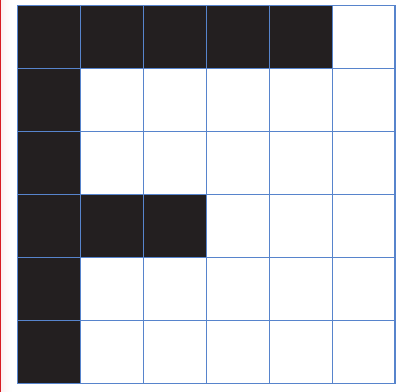
This grid pattern shows how pixels can form recognisable shapes and patterns. Each square in the grid represents one pixel, and you could write this pattern as a series of 1s and 0s.
Exam tips and common mistakes
Important
Key exam tips:
- Always show your working clearly in three steps: identify values, calculate in bits, convert to bytes
- Remember to divide by 8 when converting from bits to bytes
- Check if the question asks for the answer in specific units (bits, bytes, KB, MB)
- Make sure you're using the right values for width, height, and colour depth
Common pitfalls to avoid:
- Forgetting to convert from bits to bytes
- Mixing up width and height values
- Using the wrong colour depth value
- Not showing units in your final answer
Real-world applications
Understanding image file sizes helps you make informed decisions in many practical situations:
- Choose the right image quality for websites (smaller files load faster)
- Plan storage space for digital photo collections
- Understand why professional cameras produce such large files
- Make decisions about image compression and file formats
Note
Modern smartphones often capture images at very high resolutions with 24-bit colour depth, which is why a single photo can easily be several megabytes in size. Understanding the calculation helps explain why cloud storage fills up so quickly with photos!
Summary
Key Points to Remember:
- File size formula: (in bits)
- Convert to bytes: Divide your bits answer by 8
- Colour depth matters: More bits per pixel = more colours but bigger files
- Show your working: Always write out each step clearly in exams
- Check your units: Make sure your final answer uses the units asked for in the question