Image in Pixels and Binary (AQA GCSE Computer Science): Revision Notes
📚Revision Notes
Image representation in pixels and binary
What are pixels?
When you look at any digital image on a computer screen, it's actually made up of thousands of tiny squares called pixels. The word "pixel" is short for picture element, and these are the smallest building blocks of any digital image.
Think of pixels like the tiles in a mosaic - each individual tile (pixel) contributes to the overall picture. In the simplest black and white images, each pixel can only be one of two colours: black or white.
Note
Just like how a mosaic artwork is created from many individual tiles, digital images are built from many individual pixels. The more pixels you have, the more detailed your final image will be!

How black and white images are stored in binary
Computers need to store image information in a way they can understand - using only 1s and 0s (binary). For simple black and white images, this is straightforward:
- Black pixels are represented by the binary digit 1
- White pixels are represented by the binary digit 0
When a computer stores an image, it reads each row of pixels from left to right, top to bottom. Each pixel becomes either a 1 or 0 in the computer's memory.
Example
Worked Example: Converting Pixels to Binary
If you have a row with the pattern: black, white, white, black, white
Step 1: Replace each colour with its binary value
- Black = 1, White = 0
Step 2: Write the binary sequence This becomes: 10010
The image shown earlier demonstrates this perfectly - you can see how the black and white pixel pattern on the left converts to a grid of 1s and 0s on the right, with each row using 8 bits (one byte) to store the information.
Understanding image size
The image size refers to the dimensions of an image measured in pixels. It's calculated as:
Example
Worked Example: Calculating Image Size
If an image is 5 pixels wide and 7 pixels tall:
Step 1: Apply the formula Image size = width × height
Step 2: Substitute the values Image size = 5 × 7 = 35 pixels total
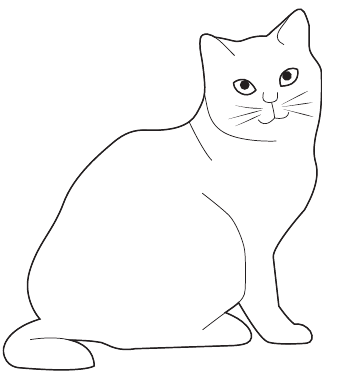
Most real images contain many more pixels than simple examples. A typical photograph might be 100 × 152 pixels, giving it 15,200 total pixels. To store this as binary data, you'd need 15,200 bits, which equals 1,900 bytes (or just under 2 kilobytes).
The more pixels an image has, the higher its resolution. Higher resolution images look clearer and more detailed, but they also require more storage space because there are more pixels to store.
Important
Key Trade-off: Higher resolution means better image quality, but it also means larger file sizes and more storage space required. This is why choosing the right resolution for your needs is important!
Colour depth - adding more colours
While black and white images are simple to understand, most images we see have multiple colours. To store coloured images, computers need to use more than just 1 bit per pixel.
Colour depth refers to how many different colours each pixel can represent. This is achieved by using more binary digits (bits) for each pixel.
Example
Worked Example: 4-Color System
If you want each pixel to show one of four different colours, you need 2 bits per pixel:
- 00 = White
- 01 = Red
- 10 = Green
- 11 = Black
With 2 bits, you can represent different colours.
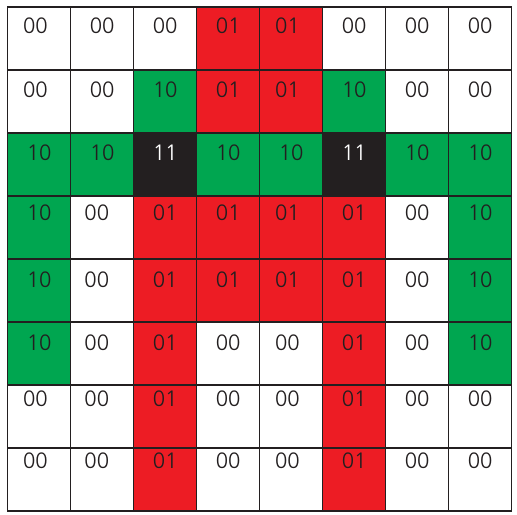
This color-coded grid shows how binary codes create a colourful pattern. Each cell contains a 2-bit binary number that determines its colour, demonstrating how computers can create more complex images by using multiple bits per pixel.
The more bits you use per pixel, the more colours you can represent:
- 1 bit per pixel = colours (black and white)
- 2 bits per pixel = colours
- 8 bits per pixel = colours
- 24 bits per pixel = over 16 million colours
Note
The pattern here follows powers of 2: each additional bit doubles the number of possible colours. This is why colour depths are typically powers of 2 (1, 2, 4, 8, 16, 24 bits).
File size calculations
Understanding how much storage space an image needs is important. The file size depends on two main factors: the number of pixels and the colour depth.
Example
Worked Example: File Size Calculation
For an 8×8 pixel image with 2 bits per pixel:
Step 1: Calculate total pixels Total pixels = 8 × 8 = 64 pixels
Step 2: Calculate total bits needed Total bits = 64 pixels × 2 bits per pixel = 128 bits
Step 3: Convert to bytes 128 bits ÷ 8 bits per byte = 16 bytes of storage
Important
Factors Affecting File Size:
- Image dimensions (width × height) - more pixels = larger file
- Color depth - more bits per pixel = larger file
- These two factors multiply together, so changes in either can significantly impact file size
Summary
Key Points to Remember:
- Pixels are the building blocks of all digital images - they're the smallest elements that make up a picture
- Binary representation uses 1s and 0s to store image data, with different bit patterns representing different colours
- Image size is measured in pixels (width × height) and directly affects file size
- Colour depth determines how many colours each pixel can display - more bits per pixel means more possible colours
- Higher resolution images have more pixels and therefore need more storage space, but they look clearer and more detailed